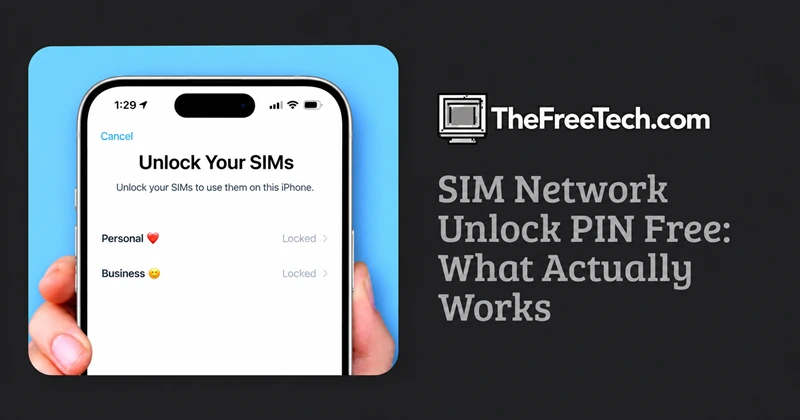
SIM Network Unlock PIN Free: What Actually Works

If your phone displays “SIM network unlock PIN” or “Network unlock PIN,” there is no universal free code that works on every phone. The phone is usually locked to a particular mobile carrier, and the legitimate way to remove that restriction is to request an unlock from the carrier that originally locked the device.
For eligible devices, the carrier may provide the unlock procedure at no charge. The exact requirements depend on the carrier and country.
What Does “SIM network Unlock PIN” Mean
A SIM network unlock PIN is associated with a carrier/network lock. It is not the same thing as the PIN you use to protect your SIM card.
For example, if a phone was sold for use on Carrier A and you insert a SIM from Carrier B, the phone may display a network-unlock message. The restriction is controlled by the carrier/device system rather than being a normal Android screen-lock setting.
These codes are different
| Message or code | What it means | Where to get help |
|---|---|---|
| SIM network unlock PIN | Phone is restricted to a carrier/network | Original carrier |
| SIM PIN | Security PIN protecting the SIM/eSIM | SIM carrier |
| PUK | Code used after too many incorrect SIM-PIN attempts | SIM carrier |
| Screen-lock PIN | Unlocks the phone itself | Device owner/account |
This distinction matters because entering the wrong type of code will not unlock the network.
Can You Get a Free SIM Network Unlock PIN
Sometimes, but not as a universal code.
The free route is normally to contact the original mobile carrier and ask whether the device qualifies for an official network unlock. Google likewise directs users with carrier/network issues toward the relevant mobile carrier.
The carrier may check factors such as:
- Whether the phone was purchased from that carrier
- Whether the device has been paid off
- Whether the account meets the carrier's requirements
- Whether the phone has been reported lost or stolen
- Whether the device is eligible for unlocking under local rules
Because these requirements differ, websites claiming to have a single “free SIM network unlock PIN” for every phone should be treated cautiously.
Android: What to do When the Phone Asks for a Network Unlock PIN
If an Android phone shows “SIM network unlock PIN,” “Network locked,” or similar wording:
- Do not randomly enter PINs.
- Identify the carrier the phone was originally locked to.
- Contact that carrier's customer service or unlock service.
- Ask whether the phone is eligible for a network unlock.
- Follow the carrier's instructions.
- Insert the new SIM and test the connection after the carrier confirms the unlock.
Android's own guidance distinguishes carrier connectivity problems from ordinary Android screen-lock settings, while carrier support is the appropriate channel for cellular-service issues.
iPhone: Check the Carrier Lock First
On a modern iPhone, go to:
Settings → General → About → Carrier Lock
If it says “No SIM restrictions,” the iPhone is unlocked.
If the device is locked, Apple says that only the current carrier can unlock the iPhone. Apple itself does not perform the carrier unlock.
After the carrier confirms the unlock, you can use a SIM/eSIM from another supported carrier.
Don't Confuse a SIM PIN with a Network Unlock PIN
If your phone says “SIM Locked” or asks for the SIM's PIN, this is a different problem.
A SIM PIN protects the SIM or eSIM. If you don't know it, Apple recommends contacting the carrier that issued the SIM and specifically warns against guessing the PIN or PUK. Too many incorrect attempts can permanently lock the SIM/eSIM.
If the SIM has become PUK-locked, the carrier may be able to provide the correct PUK. If the PUK is exhausted, a replacement SIM/eSIM may be necessary.
What About Free Unlock-code Websites
Be careful with sites promising a “100% free network unlock PIN” without first identifying the phone and carrier.
There is no legitimate universal code because the unlock process depends on the specific device and carrier. A random code can also be confused with a SIM PIN or PUK, which can create a separate lockout problem.
The safer approach is:
Phone model → original carrier → eligibility check → official unlock
rather than repeatedly testing codes from an unknown website.
Quick Checklist
If you're trying to unlock a phone for another SIM:
- “SIM network unlock PIN” → contact the original carrier.
- “SIM PIN” → contact the SIM/eSIM provider if you don't know the PIN.
- “PUK” → obtain the PUK from the SIM provider.
- “No SIM restrictions” on iPhone → the carrier lock is already removed. Source: Apple Support
- Screen PIN/password → this is a device-security issue, not a network unlock.




