7 Best Free Speech-to-Text Software for Windows in 2026

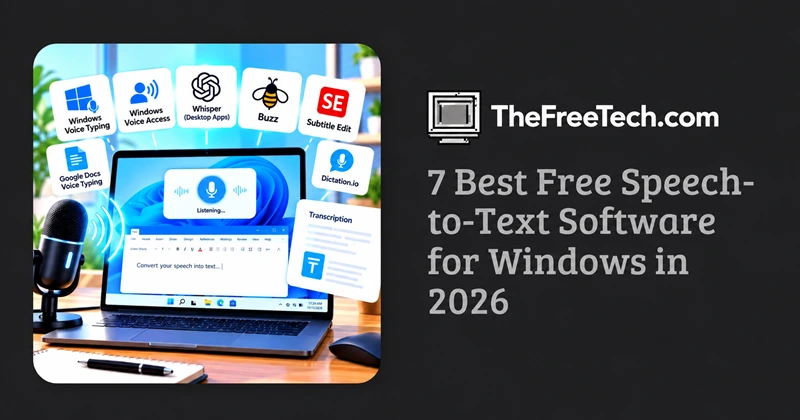
The best free speech-to-text software for Windows in 2026 depends on what you need to transcribe. Windows Voice Typing is the easiest choice for everyday dictation, Windows Voice Access is better for hands-free computer use, and Whisper-based tools are worth considering for transcribing recorded audio locally.
You do not necessarily need to pay for a transcription app. Windows includes built-in voice features, and several free tools can convert audio recordings into text. However, offline support, supported languages, and the ability to transcribe existing audio files vary by tool.
Best Free Speech-to-text Software at a Glance
| Software | Best for | Offline support | Cost |
|---|---|---|---|
| Windows Voice Typing | Everyday dictation | No | Free |
| Windows Voice Access | Dictation and voice control | Yes, after setup | Free |
| Whisper-based desktop tools | Audio and video transcription | Yes, when running a local model | Varies by app |
| Buzz | Recorded audio and video transcription | Yes, with a local model | Free, open-source |
| Subtitle Edit | Subtitles and video transcription | Yes, with supported local engines | Free, open-source |
| Google Docs Voice Typing | Writing documents in a browser | No | Free |
| Dictation.io | Quick browser-based dictation | Internet-dependent | Free |
Availability, language support, and hardware requirements depend on the software version and configuration. Confirm the current license and download source before installing a third-party application.
1. Windows Voice Typing — Best for everyday dictation
Best for: Writing emails, documents, messages, and notes without typing.
Windows Voice Typing is built into Windows 10 and Windows 11. It lets you dictate text into compatible applications without installing additional transcription software.
Key features
Starts with the
Windows + Hkeyboard shortcut.Works in many applications that accept text input.
Supports several languages, including English, French, German, Italian, Portuguese, Spanish, and Simplified Chinese.
Provides voice commands for common punctuation and symbols.
Requires an internet connection and a working microphone.
Microsoft documents Voice Typing as an online speech-recognition feature powered by Azure Speech services.
How to use it
Open Word, Notepad, an email editor, or another text field.
Place the cursor where you want the text to appear.
Press
Windows + H.Wait for the listening indicator.
Speak clearly and review the resulting text.
Main limitation: Voice Typing is designed primarily for live dictation. It is not a dedicated tool for importing and transcribing long MP3 or WAV recordings.
Official instructions: https://support.microsoft.com/en-us/accessibility/windows/use-voice-typing-to-talk-instead-of-type-on-your-pc
2. Windows Voice Access — Best for offline dictation and hands-free control
Best for: Users who want to dictate text, operate applications, and navigate Windows using voice commands.
Windows 11 Voice Access combines speech-to-text functionality with voice control. Unlike Voice Typing, it uses on-device speech recognition and can work without an ongoing internet connection after the initial setup and required language resources are available.
Key features
Dictate into text fields.
Open and switch between applications using voice commands.
Navigate the desktop and interact with controls.
Edit and correct dictated text using supported commands.
Use voice interaction without continuously relying on cloud recognition.
Voice Access is available on Windows 11, version 22H2 and later. Microsoft notes that it replaces the older Windows Speech Recognition experience on supported Windows 11 versions.
How to use it
Open Windows Settings.
Navigate to Accessibility and select Speech or Voice Access, depending on your Windows version.
Turn on Voice Access and complete the initial setup.
Follow the prompts to obtain the required speech resources.
Open a text editor and begin dictating.
Main limitation: Voice Access is designed for controlling the computer and dictating text, not for processing a folder of prerecorded interviews or audio files.
Official guide: https://support.microsoft.com/en-us/accessibility/windows/voice-access/use-voice-access-to-control-your-pc-author-text-with-your-voice
3. Whisper-based desktop software — Best for recorded audio transcription
Best for: Transcribing interviews, lectures, podcasts, meetings, and other existing audio files.
Whisper is an open-source speech-recognition model that developers can integrate into desktop applications. A desktop application that runs Whisper locally can transcribe audio without uploading recordings to a cloud transcription service.
Look for applications that explicitly support local inference and audio-file imports.
Potential advantages include:
Transcribing prerecorded audio rather than only live microphone input.
Supporting multiple languages, depending on the model and application.
Keeping recordings on your computer when the complete workflow is local.
Processing long-form audio through a desktop interface or command-line workflow.
Important distinction: Whisper itself is a model, not a single Windows desktop program. Installation, usability, hardware requirements, and licensing of the surrounding application can vary.
For users who prefer a graphical interface, Buzz is one option worth evaluating.
Project information: https://github.com/openai/whisper
4. Buzz — Best for a graphical interface for local transcription
Best for: Users who want to transcribe recordings without building their own Whisper workflow.
Buzz is an open-source application for speech transcription that offers a graphical interface for working with audio and video. Its local transcription options make it a useful candidate for users who want to keep recordings on their own computers.
Depending on the version and configuration, users can work with transcription models, import recordings, and export text or subtitle formats.
Why consider it?
It is designed around recorded-media transcription.
It can use local speech-recognition models.
It is more approachable than manually configuring a transcription script.
It may suit journalists, students, researchers, and content creators.
Main limitation: Local transcription can be slower on less powerful computers. Model downloads, memory requirements, supported formats, and available features should be checked against the current release.
Project and installation information: https://github.com/chidiwilliams/buzz
5. Subtitle Edit — Best for subtitles and video transcription
Best for: YouTube creators, video editors, and anyone who needs subtitles with timestamps.
Subtitle Edit is a free, open-source subtitle editor for Windows. It supports workflows for generating and editing subtitles and can work with speech-recognition engines, including Whisper-based options.
Its main advantage is the subtitle workflow rather than general-purpose dictation.
Useful capabilities
Work with subtitle files and timestamps.
Edit subtitle text and timing.
Use supported speech-recognition engines to generate subtitles.
Export common subtitle formats.
Review and correct recognition mistakes before publishing.
Main limitation: It has more features than most users need for ordinary note-taking. Users may also need to configure an appropriate speech-recognition engine.
Project and download information: https://github.com/SubtitleEdit/subtitleedit
6. Google Docs Voice Typing — Best for browser-based document writing
Best for: Students, writers, and users who primarily work in Google Docs.
Google Docs Voice Typing lets users dictate directly into a document through a supported browser and microphone.
Advantages
No separate Windows transcription program is required.
Dictation happens directly inside the document.
Useful for drafting essays, reports, and notes.
Accessible through a browser.
Main limitation: It depends on a supported browser and internet-connected services. It is not the best choice for private offline transcription or importing long prerecorded audio files.
To get started, open a Google Docs document and look for Voice typing under the Tools menu when the feature is available.
7. Dictation.io — Best for quick browser-based dictation
Best for: People who want to dictate short notes without installing a desktop application.
Dictation.io is a browser-based dictation service intended for converting speech into text. It may be convenient for short passages, reminders, and quick drafts.
Advantages
Simple browser-based workflow.
No conventional desktop installation is required.
Useful for occasional dictation.
Main limitation: Browser permissions, recognition support, language availability, and internet requirements affect usability. Review the service's current privacy policy before using it for confidential material.
Website: https://dictation.io/
Which free Windows speech-to-text tool should you choose?
Choose according to the task you need to complete, rather than the number of features an application advertises.
| Your requirement | Recommended starting point |
|---|---|
| Dictate emails and documents | Windows Voice Typing |
| Control Windows using your voice | Windows Voice Access |
| Dictate without a continuing internet connection | Windows Voice Access |
| Transcribe an existing interview or lecture | Buzz or another local Whisper desktop application |
| Create subtitles from video | Subtitle Edit |
| Dictate directly into an online document | Google Docs Voice Typing |
| Take occasional short notes in a browser | Dictation.io |
If privacy matters most
Prefer an application that runs its speech-recognition model locally and does not upload audio to a remote service.
Local processing reduces the need to transmit recordings to a cloud provider, but it does not automatically guarantee that an application never sends telemetry or other information online. Review its network behavior and privacy documentation if you handle confidential recordings.
If you need to transcribe a different language
Check the supported languages for the specific tool and recognition model. Language support can differ between dictation interfaces and transcription engines. Test a short recording in your actual language before relying on a tool for a lengthy project.
If your computer is not powerful
Start with built-in Windows features for live dictation. Local AI transcription may require more processing time and memory, depending on the model size and hardware.
For long recordings, a smaller model can be a practical starting point, although it may produce less accurate results than a larger model under some conditions.
How to Improve Speech-to-text Accuracy
Even good speech-recognition software makes mistakes. These steps can improve the result:
Use a clear microphone. A headset or external microphone can help reduce room noise.
Speak naturally and clearly. Avoid speaking too quickly, especially when dictating names, technical terms, or numbers.
Reduce background noise. Fans, music, television, and nearby conversations can interfere with recognition.
Check language settings. Match the recognition language to the language you are actually speaking.
Add unfamiliar vocabulary where supported. Some voice-control tools allow you to add difficult names or specialized words.
Proofread the result. Check names, dates, figures, punctuation, and technical terminology before publishing or sharing the text.
For interviews or meetings, review the transcript against the recording rather than assuming the software has captured every word correctly.
FAQ
Is there completely free speech-to-text software for Windows?
Yes. Windows Voice Typing and Voice Access are built-in options, and open-source applications such as Buzz and Subtitle Edit offer additional transcription workflows. Some third-party applications may have optional paid services or other licensing conditions.
Can I convert speech to text without an internet connection?
Yes. Windows Voice Access supports on-device recognition after setup. Local Whisper-based desktop applications can also transcribe audio offline when the model and dependencies are installed. Windows Voice Typing, by contrast, relies on online recognition.
What is the difference between dictation and transcription?
Dictation converts speech into text as you speak into a microphone. Transcription generally means converting an existing recording, such as an interview, meeting, or lecture, into text. Some tools support both tasks, but many are designed primarily for one.
Is free speech-to-text software accurate enough for professional work?
It can be useful for drafting, notes, interviews, and subtitles, but accuracy depends on audio quality, language, accents, background noise, and vocabulary. Important transcripts should always be reviewed by a person.
Does Windows still support Windows Speech Recognition?
Windows 10 and older supported Windows versions have the classic Windows Speech Recognition feature. On Windows 11 version 22H2 and later, Microsoft has transitioned to Voice Access as the modern voice-control experience.