How to Set Up Automatic Responses in Outlook

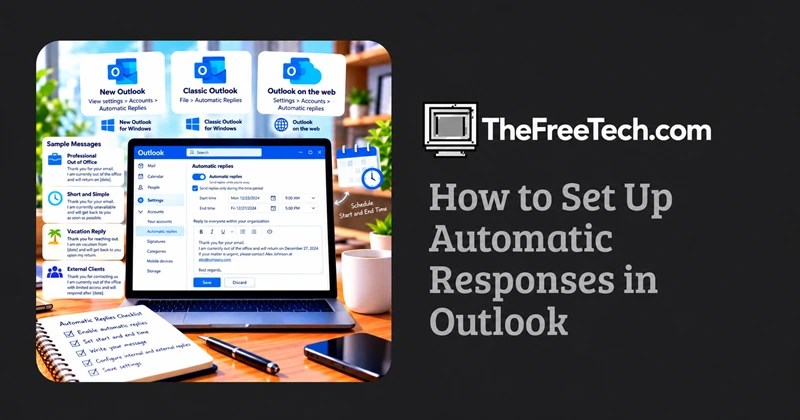
To set up an automatic response in Outlook, open Automatic Replies, turn the feature on, enter your message, and save your settings. You can also schedule a start and end time so Outlook stops sending out-of-office replies when you return.
The exact steps depend on whether you use new Outlook, classic Outlook for Windows, or Outlook on the web.
How to Turn On Automatic Replies in Outlook
New Outlook for Windows
Open Outlook and select View > View settings.
Select Accounts > Automatic Replies.
Turn on the Automatic replies toggle.
Select Send replies only during a time period if you want to schedule your message.
Enter your start and end dates and times.
Write your automatic reply. If available, configure separate messages for people inside and outside your organization.
Select Save.
Classic Outlook for Windows
Open Outlook and select File.
Select Automatic Replies.
Choose Send automatic replies.
Optionally, select a date and time range.
Enter your message under the appropriate internal or external sender tab.
Select OK to save your settings.
If the Automatic Replies button is missing, your email account may not support the built-in feature. See the troubleshooting section below.
Outlook on the web
Sign in to Outlook on the web.
Select Settings.
Go to Accounts > Automatic replies.
Turn on automatic replies.
Set a start and end time if needed.
Enter your message and configure any external sender options.
Select Save.
Menu labels can vary slightly between Outlook versions. For Microsoft's official instructions, see How to set up out-of-office automatic replies in Outlook.
How to Schedule Automatic Responses
Scheduling is useful when you plan to take vacation, attend a conference, or be unavailable during specific dates.
When configuring automatic replies:
Enable the option to send replies only during a specified period.
Set the start date and time.
Set the end date and time.
Save the settings.
Outlook will manage the automatic reply period for you. If you do not specify an end time, you may need to turn the feature off manually.
Automatic Reply Messages You Can Copy
1. Professional out-of-office message
Thank you for your email. I am currently out of the office and will return on [return date]. I will respond to your message as soon as possible after my return.
For urgent matters, please contact [colleague's name] at [email address].
Best regards,
[Your name]
2. Short and simple automatic response
Thank you for your email. I am currently unavailable and will reply as soon as possible.
Best regards,
[Your name]
3. Vacation automatic reply
Thank you for reaching out. I am on vacation from [start date] to [end date] and will have limited access to email.
I will respond when I return. For urgent assistance, please contact [contact name] at [email address].
Thank you for your understanding.
4. Automatic reply for external clients
Thank you for contacting us. I am currently away from the office and will return on [return date].
For immediate assistance, please contact [team or colleague] at [contact details]. Otherwise, I will respond to your message as soon as possible after I return.
Kind regards,
[Your name]
What If Automatic Replies Is Missing in Outlook
If you cannot find the Automatic Replies setting, check your account type first.
The built-in feature is supported by many Microsoft 365 work or school accounts, Exchange accounts, and Outlook.com accounts. However, Gmail, Yahoo, and other POP or IMAP accounts may not support Outlook's built-in Automatic Replies feature.
Depending on your account and Outlook version, you may have these options:
Outlook on the web: Check whether automatic replies are available in your mailbox settings.
Classic Outlook for Windows: Use a supported mail-server feature or investigate a rules-based workaround.
Rules-based response: Some configurations allow a rule to reply to incoming messages using a prepared template. This may require Outlook to remain running, and it does not behave exactly like server-managed out-of-office replies.
For account-specific instructions, consult Microsoft's official Outlook automatic replies guide.
FAQ
Does Outlook automatically reply to every email?
Not necessarily. Outlook's built-in out-of-office feature generally sends an automatic reply once to each sender during the active period, rather than replying to every message from the same person.
Can I send automatic replies to people outside my organization?
Yes, if your account and organization settings allow it. You can configure an external message separately and, in some versions, limit replies to people in your contacts.
How do I turn off automatic replies?
Open the Automatic Replies settings, turn the feature off, and save if required. If you scheduled an end time, Outlook should stop sending replies when that period ends.
Can I set up an automatic reply in Outlook without a Microsoft 365 subscription?
It depends on your account type and service. Outlook.com supports automatic replies, while the availability of built-in automatic replies in other accounts depends on the email provider and account configuration.
Are automatic replies the same as email forwarding?
No. Automatic replies send a message to notify the sender that you are unavailable. Email forwarding sends an incoming message to another email address.