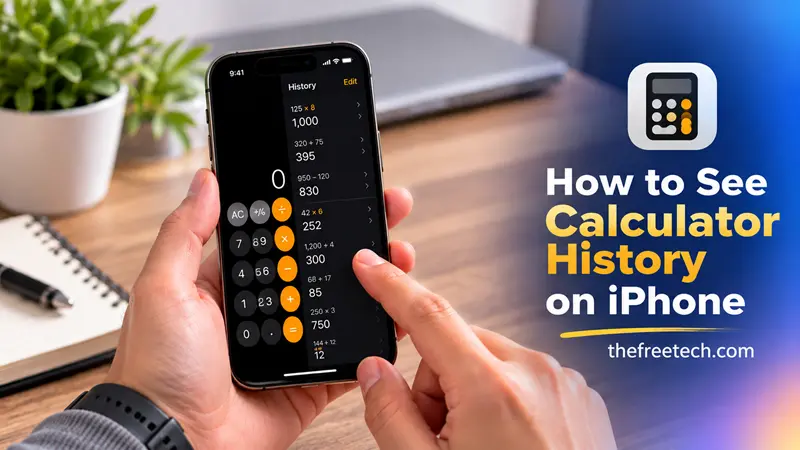
How to See Calculator History on iPhone

You can see your previous calculations on an iPhone using the History feature in the Calculator app, available in supported versions of iOS. Open Calculator, switch to the appropriate calculator view if needed, and look for the history control to review earlier calculations.
If you cannot find a History option, your iOS version or calculator interface may not support it. Here is how to check your calculation history and what to do if it is unavailable.
1. Open Calculator History on Your iPhone
Follow these steps to check whether your Calculator app supports calculation history:
Open the Calculator app on your iPhone.
Switch to the calculator mode or view that includes the History feature, if available.
Look for the History icon or control on the screen.
Tap it to view previous calculations.
Select a calculation if the interface offers options to reuse or copy its result.
The exact controls can vary by iOS version. If you do not see a History option, continue to the next section.
2. What If Your iPhone Calculator Has No History Option?
Not every iPhone calculator interface provides a persistent list of previous calculations.
Try these alternatives:
Check your iOS version: Update your iPhone if an available update introduces a Calculator feature you need.
Check the calculator mode: Switch between available calculator views and look for additional controls.
Use the current result: If your previous calculation is still displayed, copy it before starting another calculation.
Use a calculator with a history feature: If you frequently need to revisit calculations, consider a calculator app that explicitly supports calculation history.
Important: If a previous calculation has disappeared and was never saved, the built-in Calculator app may not provide a way to recover it.
3. Can You See Calculator History After Closing the App?
It depends on the history functionality available in your version of iOS and the calculator interface you use.
If your Calculator app provides a History feature, open it and check whether the earlier calculation remains listed. If it does not provide saved history, closing or reopening the app may leave you without access to the previous calculation.
For important calculations, save the result in Notes or another document instead of relying on the calculator display.
4. How to Save an iPhone Calculator Result
If you need to keep a calculation for later, use one of these methods:
Copy and paste: Copy the displayed result and paste it into Notes, Messages, or another app.
Use Notes: Record both the calculation and its result so you can understand what the number represents later.
Take a screenshot: Capture the screen when you need a visual record of a calculation.
Use a calculator app with saved history: Choose one that lets you revisit previous calculations when needed.
These methods are useful for budgeting, shopping totals, work calculations, and other tasks where you may need to check a number again.
FAQ
Can I see all my past calculations on my iPhone?
Only if your calculator app and iOS version support an appropriate history feature and retain those calculations. Otherwise, you may need to use a third-party calculator or save results manually.
Does the iPhone Calculator automatically save every calculation?
You should not assume that every calculation is permanently saved. Check the History feature available on your device, if any, and save important results separately.
Can I recover deleted calculator history on my iPhone?
If the calculations are no longer available in the app and were not saved elsewhere, there may be no way to recover them. Check any notes, screenshots, or other records where you might have stored the results.
How can I keep track of calculations for future use?
Copy results into Notes, take screenshots, or use a calculator app with a dedicated history list.