How to Delete Apps on iPhone That Are Hidden

You can delete hidden apps on an iPhone even if they do not appear on your Home Screen. Depending on how the app is hidden, you can remove it through the Hidden folder, iPhone Storage settings, or the App Library.
The steps below explain how to find and permanently remove hidden apps from your iPhone.
Method 1: Delete Apps From the Hidden Folder
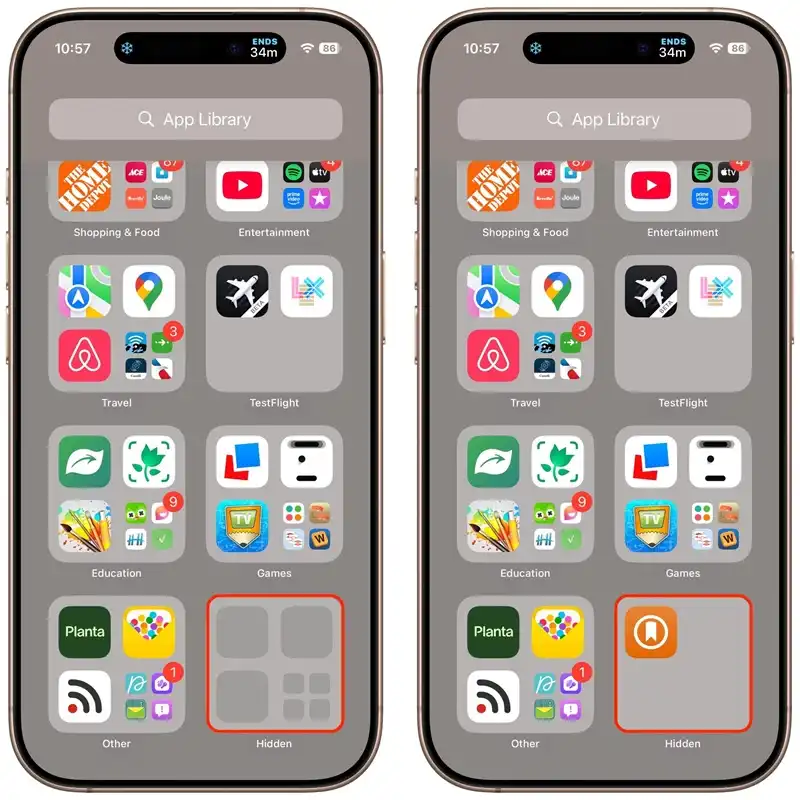
If you are using iOS 18 or later, some apps may be hidden in a dedicated folder in the App Library.
Follow these steps to delete them:
Swipe left through your Home Screen pages until you reach the App Library.
Scroll down and tap the Hidden folder.
Unlock the folder using Face ID, Touch ID, or your passcode.
Touch and hold the app you want to delete.
Tap Delete App.
Confirm by tapping Delete.
The app will be removed from your iPhone. If you cannot find the app in the Hidden folder, try the next method.
Method 2: Delete Hidden Apps Through iPhone Settings
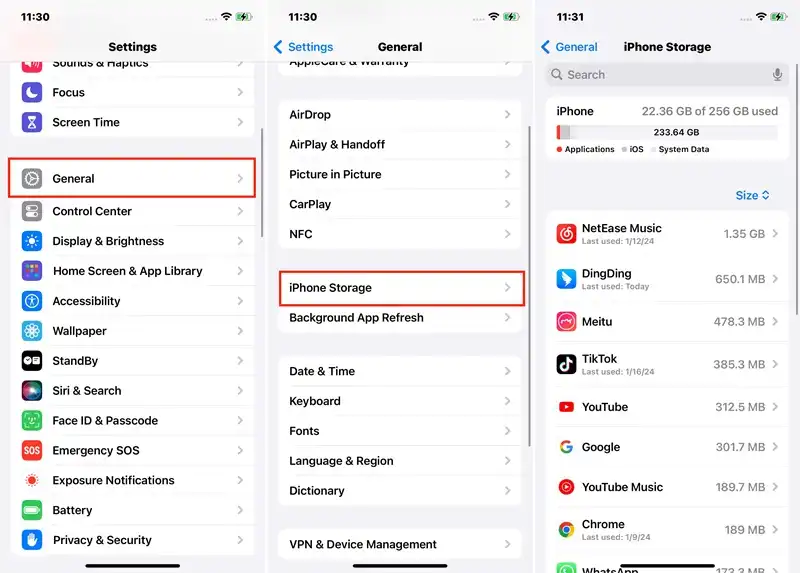
You can also delete apps through Settings, even if their icons are difficult to find.
Open Settings on your iPhone.
Tap General.
Select iPhone Storage.
Wait for the list of installed apps to appear.
Find and tap the app you want to remove.
Tap Delete App and confirm your choice.
Make sure you select Delete App rather than Offload App. Offloading removes the app itself but keeps its documents and data on your device.
Method 3: Delete Apps Removed From the Home Screen
Sometimes, an app is not actually hidden. It has simply been removed from the Home Screen and remains installed in the App Library.
To delete it:
Swipe left until you open the App Library.
Use the search field to find the app.
Touch and hold the app icon.
Select Delete App.
Confirm the deletion.
Removing an app from the Home Screen does not uninstall it. You must choose Delete App to remove it from your iPhone.
What to Do If You Cannot Delete a Hidden App
If you cannot delete an app, check the following possibilities:
The app is missing from the Hidden folder: Open Settings, go to General, and select iPhone Storage to look for it.
Delete App is unavailable: Check Settings, then Screen Time, followed by Content & Privacy Restrictions. Restrictions may prevent apps from being deleted.
You only see Remove from Home Screen: The app may still be installed. Check the App Library or iPhone Storage.
The app is managed by work or school: Device-management policies may restrict its removal.
For more help finding missing apps, visit Apple Support.
FAQ
Can I delete hidden apps without unhiding them first?
Yes. On supported iOS versions, open the Hidden folder, authenticate, and touch and hold the app to look for the Delete App option.
Does deleting a hidden app delete my account?
No. Deleting an app removes it from your iPhone, but it does not necessarily delete your account or the information stored on the app's servers. You may need to delete your account separately through the app or its website.
What is the fastest way to delete hidden apps on an iPhone?
The quickest method is often to open Settings, select General, and then tap iPhone Storage. Find the app and select Delete App.




