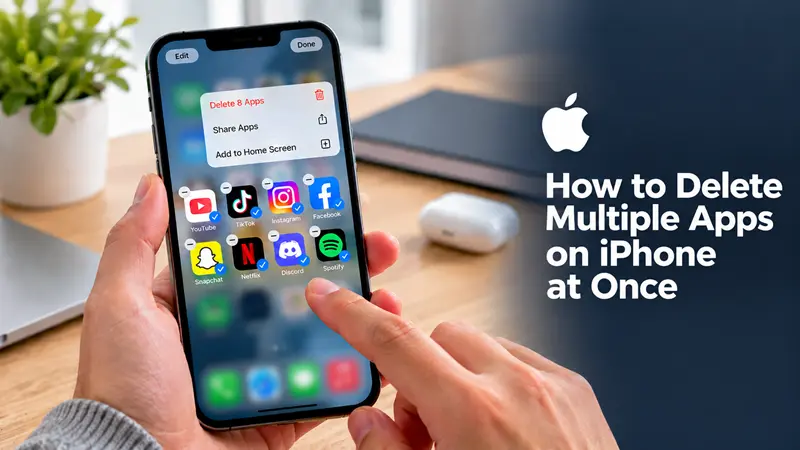
How to Delete Multiple Apps on iPhone at Once

If you want to delete multiple apps on your iPhone at once, there is one important limitation: iOS does not offer a built-in feature to select several apps on the Home Screen and delete them all in a single action. However, you can remove apps one by one from the Home Screen or use the iPhone Storage settings to find and delete unwanted apps more efficiently.
Method 1: Delete Apps From the Home Screen
This is the quickest option if the apps you want to remove are visible on your Home Screen.
Touch and hold an empty area of the Home Screen until the app icons start to jiggle.
Tap the minus sign or removal icon on the app you want to delete.
Select Delete App, then confirm by tapping Delete.
Repeat these steps for each app you want to remove.
Tap Done or tap an empty area of the screen when finished.
Important: Choose Delete App rather than Remove from Home Screen. The latter hides the icon from your Home Screen but keeps the app installed in your App Library.
Method 2: Delete Multiple Apps Through iPhone Storage Settings
If your goal is to remove several apps and free up storage, the iPhone Storage screen makes it easier to identify which apps take up the most space.
Open Settings.
Go to General.
Tap iPhone Storage.
Wait for the list of installed apps to load.
Select an app you no longer need.
Tap Delete App, then confirm.
Return to the app list and repeat for other unwanted apps.
This method is especially useful when your iPhone is running low on storage because you can review app sizes before deciding what to delete.
Delete App vs. Offload App
The iPhone Storage screen offers two different options, and choosing the right one matters.
| Option | What happens |
|---|---|
| Delete App | Removes the app and its associated local data. Data stored separately in cloud services or online accounts may remain. |
| Offload App | Removes the app itself but keeps its documents and data on your iPhone, allowing you to restore them if you reinstall the app. |
If you want to permanently remove an app and its associated local data, choose Delete App. If you want to save space while keeping your app data, consider Offload App instead.
Method 3: Automatically Remove Unused Apps
If you want to free up space without manually deleting every app, your iPhone can automatically offload apps you rarely use.
Open Settings.
Tap Apps, then App Store. On some iOS versions, the App Store setting may be accessed differently.
Turn on Offload Unused Apps.
Your iPhone can then remove unused apps when storage is needed while keeping their documents and data. The app icon may remain on your Home Screen with a cloud symbol, allowing you to reinstall it later.
Keep in mind that this feature offloads apps rather than permanently deleting them.
What If You Cannot Delete an App
If the Delete App option does not appear, check these possibilities:
Screen Time restrictions: Content and privacy settings may prevent app deletion.
Built-in Apple apps: Some preinstalled apps cannot be deleted, although others can.
Managed iPhones: A school or workplace may restrict app removal through device management.
Subscriptions: Deleting an app does not automatically cancel its subscription. Cancel any subscription separately if you no longer want to pay for it.
For additional guidance, see Apple's official instructions: https://support.apple.com/guide/iphone/remove-or-delete-apps-iph248b543ca/ios.
FAQ
Can I delete multiple apps on an iPhone with one tap?
No. The standard iPhone interface does not provide a select-all option for deleting multiple apps simultaneously. You must confirm deletion for each app individually.
Does removing an app from the Home Screen delete it?
No. Selecting Remove from Home Screen keeps the app installed in your App Library. Choose Delete App if you want to uninstall it.
How can I free up the most iPhone storage quickly?
Go to Settings > General > iPhone Storage and review the apps using the most space. Delete apps you no longer need, or offload apps whose data you want to preserve. You can also review downloaded videos, files, and other large items.
Can I restore an app after deleting it?
Yes. You can usually reinstall it from the App Store if it is still available. However, locally stored app data may not be recoverable unless it was backed up or synced separately.




