Best Free Drawing Software in 2026: 5 Top Apps Compared

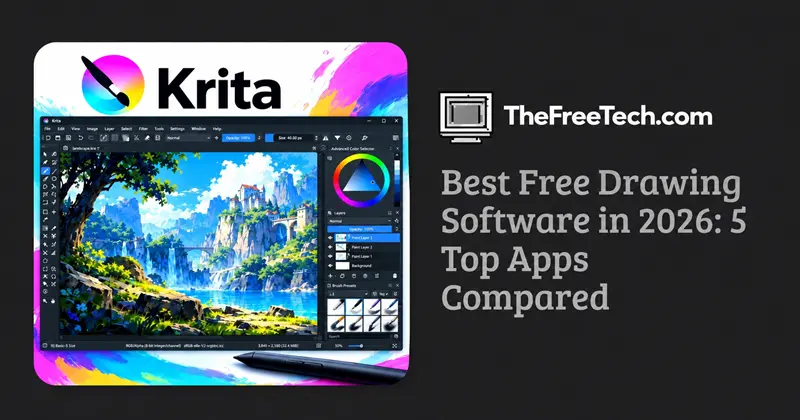
The best free drawing software for most digital artists is Krita. It offers a powerful set of painting, illustration, brush, layer, and animation tools without a subscription. However, Inkscape is a better choice for vector graphics, MediBang Paint suits manga and comics, and GIMP is useful when drawing overlaps with photo editing.
The right choice depends on your artwork, device, and preferred workflow. Here are five options worth considering.
Quick Comparison: Which Free Drawing Program Should You Choose
| Software | Best for | Main advantage | Main limitation |
|---|---|---|---|
| Krita | Digital painting and illustration | Extensive brushes and painting tools | Can take time to learn |
| Inkscape | Logos and vector art | Scalable graphics and precise shapes | Different workflow from painting |
| MediBang Paint | Manga and comics | Comic-oriented brushes and materials | Some additional features require an account or paid upgrade |
| GIMP | Drawing and image editing | Strong photo manipulation and layer tools | Less specialized for painting-focused workflows |
| Sketchbook | Sketching and quick ideas | Clean interface and natural drawing tools | Some advanced features require a paid upgrade |
These recommendations are based on each application's stated capabilities, not on a controlled performance test. Check the official product pages for current platform and feature availability.
1. Krita — Best overall free drawing software
Best for: Digital artists, concept artists, illustrators, and hobbyists who want advanced painting tools.
Krita is a free, open-source digital painting application designed for creating original artwork. Its features include customizable brushes, layer management, drawing assistants, color management, and tools for comics and 2D animation. It is available for Windows, macOS, Linux, and supported Android devices.
Why choose Krita?
A large collection of customizable brushes and brush engines.
Layers for separating sketches, line art, colors, and shading.
Drawing assistants for perspective and geometric guides.
Animation tools for frame-by-frame projects.
PSD support for workflows that involve Photoshop files.
What to consider: Krita's extensive interface may feel complicated to someone who only wants a basic sketching app. It is primarily designed for painting and creating artwork rather than advanced photo manipulation.
Verdict: Start with Krita if you want one capable desktop application for learning digital painting and developing more advanced illustration skills.
Official website: https://krita.org/en/
2. Inkscape — Best for vector drawing and logos
Best for: Logo designers, illustrators, icon creators, and anyone who needs clean, scalable graphics.
Inkscape is a free, open-source vector graphics editor. Unlike conventional painting programs, it creates artwork from paths, curves, shapes, and other mathematical objects rather than relying exclusively on individual pixels.
This makes it particularly useful for logos, diagrams, typography, icons, and illustrations that must remain sharp at different sizes.
Why choose Inkscape?
Precise shape and curve editing.
Bézier and freehand drawing tools.
Text and typography controls.
SVG as its primary file format.
Import and export support for formats including PDF and PNG.
What to consider: Vector editing works differently from brush-based painting. If your goal is to create textured digital paintings or expressive brushwork, Krita is likely a better fit.
Verdict: Choose Inkscape when precision, clean outlines, and scalable artwork matter more than realistic painting.
Official website: https://inkscape.org/
3. MediBang Paint — Best for manga and comics
Best for: Manga artists, comic creators, and beginners interested in illustrated storytelling.
MediBang Paint is a digital painting application built around illustration and comic creation. Its desktop version offers drawing brushes, comic materials, fonts, and tools for producing illustrated pages.
The application is also available on supported mobile devices, making it useful for artists who want to work across more than one device.
Why choose MediBang Paint?
Brushes for sketching, inking, and coloring.
Comic-oriented tones and background materials.
Support for formats such as PNG, JPEG, PSD, and its native project format.
Cloud features for users who want to transfer work between devices.
What to consider: Some cloud services and additional features depend on account registration or paid upgrades. Check which features are included in the free version before committing to a workflow.
Verdict: Consider MediBang Paint if you want to create manga pages, comic panels, or character illustrations without starting with a general-purpose design application.
Official website: https://medibangpaint.com/en/
4. GIMP — Best for drawing combined with image editing
Best for: Artists who also edit photographs, combine images, or prepare graphics for publication.
GIMP is a free, open-source image editor for Windows, macOS, and Linux. Although it can be used for digital drawing, its broader strength is image manipulation, including retouching, compositing, and working with layers.
Why choose GIMP?
Painting tools, brushes, and layers.
Photo retouching and image compositing.
Transparency and selection tools.
Support for many common image formats.
Extensibility through plug-ins and scripting.
What to consider: GIMP and Krita overlap, but they have different priorities. Krita is generally the more natural starting point for painting original artwork, while GIMP is especially useful when editing and combining existing images are central to the task.
Verdict: Choose GIMP if your work involves both illustration and substantial image editing.
Official website: https://www.gimp.org/
5. Sketchbook — Best for quick sketching
Best for: Beginners, concept sketchers, and artists who prefer a straightforward drawing interface.
Sketchbook focuses on sketching, drawing, and painting with an interface designed to keep the canvas prominent. Its tools include pencils, markers, customizable brushes, layers, rulers, and stroke assistance.
It is available across desktop and mobile platforms, although the available features and pricing differ between editions.
Why choose Sketchbook?
A clean interface for focusing on drawing.
Brushes that mimic traditional drawing tools.
Layers and blending modes.
Guides and rulers for more precise sketches.
Stylus-oriented drawing features.
What to consider: Do not assume that every desktop and mobile edition is completely free. Some advanced features are sold separately, and the current product terms depend on the edition.
Verdict: Try Sketchbook if you value a simple sketching experience more than an extensive painting or image-editing toolkit.
Official website: https://www.sketchbook.com/apps
How to Choose the Right Free Drawing Software
Before downloading an application, consider what you intend to make.
For digital painting and character illustration
Start with Krita. It provides the brush customization, layers, and painting-focused features needed for detailed illustrations.
For logos, icons, and clean line art
Choose Inkscape. Its vector-based workflow lets you resize graphics without the pixelation associated with raster images.
For manga and comic pages
Try MediBang Paint. Its comic-oriented materials and illustration tools are useful for producing panels and finished pages.
For photo-based artwork and composites
Choose GIMP if you need to combine photographs, adjust images, and create artwork in the same application.
For casual drawing and concept sketches
Try Sketchbook. Its streamlined interface can be a good fit when you want to get ideas onto the canvas quickly.
What to Check Before Downloading
Three details can prevent problems later.
1. Confirm the free version's limits. Free software, freeware, and freemium applications are not interchangeable. Some products provide a complete free application, while others reserve particular tools or services for paying users.
2. Check your device. Verify operating-system compatibility, tablet support, and stylus requirements on the official download page.
3. Choose an appropriate file format. PNG is useful for exporting finished images, SVG is important for vector graphics, and PSD compatibility can help when transferring projects between certain applications. Keep the original project file when you expect to edit your work later.
FAQ
What is the best completely free drawing software?
Krita is a strong starting point for digital painting because it is free and open source, with no subscription required. Inkscape is another excellent option if you primarily create vector graphics rather than painted illustrations.
What is the easiest free drawing software for beginners?
Sketchbook is worth trying for straightforward sketching, while Krita is a good choice if you want to learn digital painting in more depth. The easiest option ultimately depends on whether you prefer a simple interface or a more comprehensive toolkit.
Can I create professional artwork with free drawing software?
Yes. Free applications can support complex illustrations, concept art, comics, and vector graphics. Your choice of tools, drawing technique, hardware, and workflow will matter more than whether the software has a price tag.
Do I need a drawing tablet?
No. You can draw with a mouse or trackpad, but a pressure-sensitive pen tablet or compatible stylus can make brushwork and handwriting more natural. A tablet is especially useful for detailed digital painting.
Which free drawing program is best for logos?
Inkscape is a strong choice because it creates vector graphics that can be resized without losing sharpness.