5 Best Free Disk Cleaner Software to Free Up Storage Space

The best free disk cleaner software depends on your operating system and what you want to remove. For most Windows users, the built-in Storage Sense feature is a good starting point. If you want more control over application caches, browser data, and temporary files, BleachBit is another option worth considering.
A disk cleaner identifies and removes unnecessary files that occupy storage space. However, not every cleaner is equally useful, and installing additional software is not always necessary.
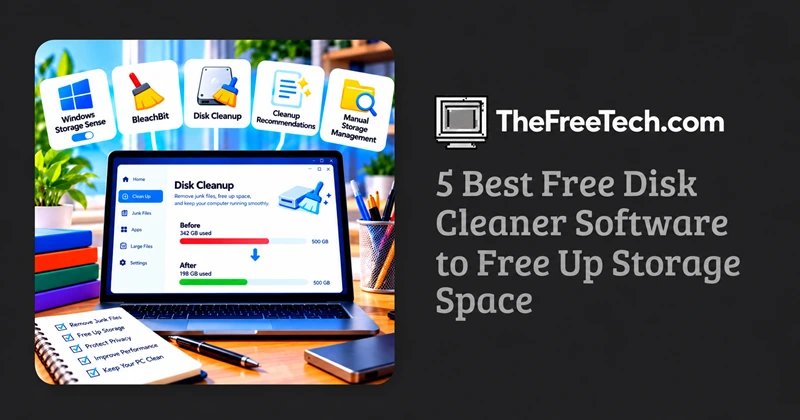
Best Free Disk Cleaner Software at a Glance
| Software | Best for | Platform | Cost |
|---|---|---|---|
| Windows Storage Sense | Automatic storage maintenance | Windows 10 and 11 | Free |
| BleachBit | Detailed cleanup and privacy | Windows and Linux | Free and open source |
| Windows Disk Cleanup | Manual cleanup of system files | Windows | Free |
| Windows Cleanup recommendations | Finding large or unnecessary files | Windows 10 and 11 | Free |
| Manual storage management | Removing large files and unused apps | Windows and macOS | Free |
These options serve different purposes. The first four are software-based cleanup features or tools, while manual storage management is a practical alternative when you do not need a dedicated cleaner.
1. Windows Storage Sense — Best for Everyday Maintenance
Windows Storage Sense is a built-in utility that automatically frees storage by removing selected temporary files and managing Recycle Bin contents.
Best for: Windows users who want simple, routine maintenance without installing another application.
Key features:
Automatically removes eligible temporary files.
Can clean the Recycle Bin according to your settings.
Supports scheduled or condition-based maintenance.
Can manage locally stored OneDrive files through configured settings.
Advantages
No additional cleaner installation is required.
Cleanup behavior can be customized.
Suitable for routine storage management.
Limitations
Primarily manages the Windows system drive.
Does not replace a dedicated tool for detailed application-by-application cleanup.
Downloads and cloud content require particular attention to the configured settings.
How to access it: Open Settings, select System, then Storage, and configure Storage Sense.
For most people, this is the first tool to try before downloading third-party software.
Official guide: https://support.microsoft.com/en-us/windows/experience/storage-filemanagement/manage-drive-space-with-storage-sense
2. BleachBit — Best for Detailed Cleanup and Privacy
BleachBit is a free, open-source system cleaner designed to remove unnecessary files and help users manage application privacy data.
Best for: Users who want more control over what gets cleaned.
Key features:
Removes supported temporary files and application caches.
Can clean selected browser history, cookies, and other privacy-related data.
Provides a preview of files selected for deletion.
Includes advanced options for experienced users.
Advantages
Free and open source.
Offers granular cleaning controls.
Useful for users who want to inspect cleanup operations before proceeding.
Limitations
Requires more care than a basic built-in cleanup utility.
Removing cookies or browser data can sign you out of websites or delete information you want to retain.
Advanced deletion options are not necessary for ordinary storage maintenance.
How to use it: Download BleachBit from its official website, open the application, select the categories you want to clean, preview the results, and review them before confirming deletion.
Official download: https://www.bleachbit.org/download
BleachBit is a strong choice when you need more control than the standard Windows cleanup tools provide.
3. Windows Disk Cleanup — Best for Manual System Cleanup
Disk Cleanup is a traditional Windows utility for removing temporary files and other eligible system data.
Best for: Users who prefer to review cleanup categories manually.
Key features:
Identifies eligible temporary files.
Can remove selected system files.
Allows you to inspect cleanup categories before deleting them.
Advantages
Included with Windows.
No separate download is required.
Gives users direct control over the categories selected for cleanup.
Limitations
Requires manual operation.
Does not provide the same automated maintenance approach as Storage Sense.
Some categories, such as previous Windows installations, can affect your ability to return to an earlier system version.
How to use it:
Search for Disk Cleanup in the Windows taskbar search box.
Open the utility and choose the drive you want to clean.
Review the available file categories.
Select the categories you understand and want to remove.
Use Clean up system files if you need to review additional system cleanup options.
Official instructions: https://support.microsoft.com/en-us/windows/experience/storage-filemanagement/free-up-drive-space-in-windows
4. Windows Cleanup Recommendations — Best for Finding Space Hogs
Cleanup recommendations help you identify categories of storage that may be taking up unnecessary space.
Best for: Users whose drives are nearly full and who need to identify what is consuming storage.
Depending on the device, the available categories can include temporary files, large or unused files, cloud-synced files, and unused applications.
Advantages
Helps you identify where storage is being used.
Shows estimated space savings before cleanup.
Lets you review items rather than automatically removing everything.
Limitations
Requires you to inspect the recommendations.
Removing large personal files or uninstalling applications requires a decision about whether you still need them.
How to access it: Open Settings, select System, then Storage, and look for Cleanup recommendations.
This is especially useful when the problem is not accumulated temporary files but large downloads, unused applications, or other storage-heavy content.
Official guide: https://support.microsoft.com/en-us/windows/experience/storage-filemanagement/free-up-drive-space-in-windows
5. Manual Storage Management — Best When You Do Not Need Extra Software
Sometimes, the most effective way to recover disk space is to remove files you no longer need rather than installing a dedicated cleaner.
Best for: Users whose storage is occupied by large videos, old downloads, unused applications, or duplicate personal files.
Useful actions include:
Review and remove unnecessary files from Downloads.
Move large photos and videos to an appropriate external drive or cloud service.
Uninstall applications you no longer use.
Empty the Recycle Bin after checking its contents.
Review storage settings to understand which categories consume the most space.
On macOS, start with the built-in storage management tools and review large files and unused applications before considering third-party cleaning software.
Manual cleanup takes more effort, but it also reduces the need to grant another application access to your files.
How to Choose the Right Free Disk Cleaner
Choose according to the problem you need to solve.
Your Windows drive is nearly full: Start with Storage settings and Cleanup recommendations.
You want automatic maintenance: Configure Storage Sense.
You want detailed application and privacy cleanup: Consider BleachBit.
You need to remove eligible Windows system files: Use Disk Cleanup.
Your storage is dominated by videos, downloads, or applications: Review those files and applications directly.
The important distinction is between removing unnecessary data and optimizing the computer. A cleaner can reclaim disk space, but it cannot guarantee faster performance, repair failing hardware, or resolve every cause of slow startup.
How to Clean Your Disk Safely
Follow these steps before running any disk cleaner.
Step 1: Check available storage
Open File Explorer and select This PC on Windows, or review Storage settings on macOS.
Identify which drive is low on space and how much storage is available.
Step 2: Start with built-in tools
Use Storage Sense, Cleanup recommendations, or Disk Cleanup on Windows. These tools provide a useful starting point without requiring a third-party download.
Step 3: Review what will be deleted
Pay particular attention to:
Downloads and personal documents.
Browser cookies and saved website sessions.
Recycle Bin contents.
Previous Windows installations and recovery-related files.
Application data that may be needed later.
Do not select every category simply because the software labels it unnecessary.
Step 4: Back up important files
Back up important documents, photos, and other irreplaceable data before making significant changes to storage or system files.
Step 5: Clean and check the result
Run the selected cleanup operation, then check the available storage again.
If the drive remains nearly full, look for large files, unused applications, and other storage categories rather than repeatedly clearing the same temporary files.
What Free Disk Cleaner Software Can and Cannot Do
A disk cleaner can remove eligible temporary files, application caches, and other unnecessary data. Depending on the tool, it may also help manage privacy-related browser information.
However, there are important limitations.
It can:
Recover storage occupied by removable files.
Help identify cleanup opportunities.
Reduce the amount of unnecessary data retained on the drive.
Automate some routine maintenance tasks.
It cannot guarantee:
A noticeable increase in computer speed.
More RAM or better hardware performance.
A fix for a failing SSD or hard drive.
Removal of every unwanted program or malware infection.
Recovery of space occupied by essential files without potentially affecting system functionality.
If a computer remains slow after cleaning, investigate startup applications, memory usage, background processes, available storage, and potential hardware issues.
Common Disk Cleaner Mistakes to Avoid
Installing multiple cleaners. Several tools may target the same files, adding complexity without providing meaningful additional benefits.
Deleting everything automatically. Some files that appear unnecessary may contain information you want to preserve, such as browser sessions or recovery data.
Assuming more cleanup means better performance. The objective is to recover useful storage, not to maximize the number of deleted files.
Downloading from unofficial websites. Obtain cleaning software from the developer's official website and verify the publisher when installing it.
Using aggressive file-shredding features unnecessarily. Secure deletion features are designed for particular privacy needs, not routine storage maintenance.
FAQ
What is the best free disk cleaner software?
For routine Windows maintenance, Storage Sense is a sensible first choice because it is built into Windows. BleachBit is worth considering if you need more detailed control over supported application and privacy cleanup.
Is free disk cleaner software safe?
It can be, provided you use reputable software, download it from an official source, and review the files selected for deletion. No cleaning utility should be treated as automatically safe for every file or setting.
Does a disk cleaner make a computer faster?
It may help when low storage is contributing to problems, but cleaning temporary files does not guarantee a speed improvement. Slow performance can have many other causes.
Do I need to pay for a disk cleaner?
Not necessarily. Windows includes several free storage management tools, and BleachBit is free and open source. Start with the features that address your actual needs before paying for additional software.
What should I do if my disk is still full after cleaning?
Check the largest storage categories, review downloads and videos, uninstall unused applications, and move files you want to keep to another suitable storage location. Repeatedly cleaning small temporary files may not solve a problem caused by large personal files.
Can I use a disk cleaner on an SSD?
Yes. Standard cleanup tools can remove eligible unnecessary files from SSDs as well as traditional hard drives. Use normal file cleanup rather than repeatedly running unnecessary secure-erasure or free-space-overwriting operations.