8 Best Free 3D Design Software Options

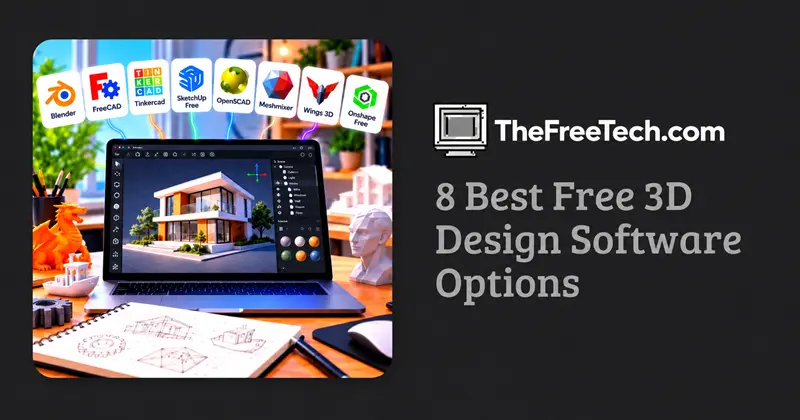
The best free 3D design software depends on what you want to create. Blender is a strong choice for artistic modeling, animation, and rendering. FreeCAD is suited to parametric mechanical design, while Tinkercad offers a simpler starting point for beginners and basic 3D-printable objects.
Other options serve specialized needs, including browser-based CAD, sculpting, and architectural modeling. Before choosing a tool, check whether it is completely free, open-source, or available only through a limited free plan.
Best Free 3D Design Software at a Glance
| Software | Best for | Cost model |
|---|---|---|
| Blender | Modeling, animation, rendering | Free and open-source |
| FreeCAD | Mechanical CAD and engineering | Free and open-source |
| Tinkercad | Beginners and simple 3D printing | Free web-based service |
| SketchUp Free | Basic architectural and spatial modeling | Free tier |
| OpenSCAD | Parametric and code-based modeling | Free and open-source |
| Meshmixer | Mesh editing and 3D-print preparation | Free legacy software; availability may vary |
| Wings 3D | Polygonal modeling | Free and open-source |
| Onshape Free | Browser-based collaborative CAD | Free plan with limitations |
Feature availability, platform support, and licensing can change. Check each product's official website for current details before installing it or committing to a project.
1. Blender: Best for Artistic 3D Design
Blender is a versatile 3D creation application for modeling, sculpting, animation, visual effects, and rendering. Its extensive toolset makes it suitable for beginners who want to learn digital art as well as experienced creators working on complex scenes.
Best for: 3D art, game assets, animation, product visualization, and visual effects.
Advantages
Free and open-source.
Includes modeling, sculpting, materials, lighting, and rendering tools.
Supports animation and visual effects workflows.
Has a large learning-resource ecosystem.
Limitations
Its interface and workflow can be challenging for beginners.
Precision engineering workflows may be less convenient than those in dedicated CAD software.
Complex scenes can require substantial computing resources.
Choose Blender if: You want one application for creating detailed 3D objects, rendering realistic images, or producing animated content.
2. FreeCAD: Best for Mechanical Design and Engineering
FreeCAD is an open-source parametric CAD application designed for creating dimensionally precise models. Its feature-based workflow allows users to modify dimensions and design features while preserving relationships between parts of a model.
Best for: Mechanical components, functional parts, engineering prototypes, and technical design.
Advantages
Free and open-source.
Supports parametric modeling.
Useful for dimension-driven designs and engineering workflows.
Supports multiple workbenches for different modeling tasks.
Limitations
The interface and workflows take time to learn.
Its user experience may feel less streamlined than some commercial CAD applications.
Artistic sculpting and character animation are not its main strengths.
Choose FreeCAD if: You need accurate dimensions and editable design parameters rather than primarily visual modeling.
3. Tinkercad: Best for Beginners
Tinkercad is a browser-based design tool that makes basic 3D modeling accessible without installing a traditional desktop application. Users combine and subtract simple shapes to build objects, making it especially useful for learning fundamental modeling concepts.
Best for: Students, beginners, classroom projects, and simple 3D-printable designs.
Advantages
Easy to learn.
Works in a web browser.
Suitable for simple objects and introductory CAD exercises.
Supports workflows for 3D printing.
Limitations
Complex geometry and advanced modeling are less convenient.
Professional engineering workflows require more capable tools.
An internet connection and compatible browser are generally needed.
Choose Tinkercad if: You are new to 3D design and want to create your first object without dealing with a complicated interface.
4. SketchUp Free: Best for Basic Architectural Modeling
SketchUp Free provides browser-based tools for creating and exploring three-dimensional spaces. Its direct modeling workflow is useful for room layouts, simple buildings, furniture concepts, and other spatial designs.
Best for: Basic architecture concepts, interiors, furniture layouts, and spatial visualization.
Advantages
Accessible through a web browser.
Intuitive tools for drawing and extruding shapes.
Useful for understanding scale and spatial relationships.
Suitable for straightforward conceptual models.
Limitations
The free version has fewer capabilities than paid editions.
Advanced documentation and professional workflows may require a paid plan.
Complex organic modeling is not its primary focus.
Choose SketchUp Free if: Your priority is visualizing buildings, rooms, or furniture rather than creating intricate mechanical parts.
5. OpenSCAD: Best for Parametric and Code-Based Design
OpenSCAD takes a different approach to 3D modeling. Instead of building every object through mouse-driven operations, users describe geometry using a scripting language.
This approach is especially useful when a design needs precise dimensions or repeatable variations.
Best for: Parametric parts, customizable components, geometric objects, and repeatable 3D-print designs.
Advantages
Free and open-source.
Supports precise, parameter-driven models.
Useful for generating families of related objects.
Makes design logic explicit and reproducible.
Limitations
Requires learning its scripting syntax.
Less intuitive for freeform artistic modeling.
Complex visual shapes can require more planning than in interactive sculpting tools.
Choose OpenSCAD if: You prefer defining dimensions and geometric relationships in code and want to generate consistent variations of a design.
6. Meshmixer: Best for Editing Existing 3D Meshes
Meshmixer has been used to inspect, repair, combine, and prepare mesh-based models, particularly for 3D printing. However, it is legacy software, so current availability, compatibility, and support should be verified before making it part of a new workflow.
Best for: Repairing existing meshes and preparing models for printing.
Advantages
Historically useful for mesh manipulation.
Supports workflows involving existing STL-style models.
Can help with mesh cleanup and model preparation.
Limitations
It is not a general-purpose parametric CAD replacement.
Its legacy status makes it a less future-proof recommendation.
Users may prefer actively maintained alternatives for new projects.
Choose Meshmixer if: You already rely on its mesh-editing workflow and have confirmed that it remains compatible with your setup.
7. Wings 3D: Best for Traditional Polygonal Modeling
Wings 3D is a free, open-source polygonal modeler focused on creating and editing 3D meshes. It offers a more specialized environment than a comprehensive application such as Blender.
Best for: Low-poly objects, mesh modeling, and learning polygonal modeling techniques.
Advantages
Free and open-source.
Focuses on core polygonal modeling operations.
Useful for building and refining mesh-based objects.
Less focused on animation and production pipelines than larger 3D suites.
Limitations
Does not offer the same all-in-one feature set as Blender.
Not intended to replace mechanical CAD software.
Users seeking advanced animation and rendering workflows may need another application.
Choose Wings 3D if: You want a focused mesh modeler and do not need an integrated animation production suite.
8. Onshape Free: Best for Browser-Based Collaborative CAD
Onshape is a cloud-based CAD platform that supports collaborative product design. Its free plan can be useful for learning CAD and building projects, but its licensing conditions and document-visibility restrictions matter.
Best for: Collaborative product design, parametric CAD, and browser-based engineering workflows.
Advantages
Runs in a browser.
Supports parametric part and assembly design.
Makes collaboration part of the design workflow.
Avoids the need to manage a conventional desktop CAD installation.
Limitations
The free plan has restrictions compared with paid plans.
Free-plan documents may be publicly visible, so confidential designs require particular care.
An internet connection is needed for the standard cloud workflow.
Choose Onshape Free if: You want browser-based parametric CAD and can work within the free plan's licensing and privacy conditions.
Which Free 3D Design Software Should You Choose?
The easiest way to decide is to start with the object you want to create.
| Your project | Recommended starting point |
|---|---|
| A first 3D model | Tinkercad |
| A mechanical part with exact dimensions | FreeCAD |
| A character, environment, or animated scene | Blender |
| A room, building concept, or furniture layout | SketchUp Free |
| A customizable component generated from parameters | OpenSCAD |
| A mesh that needs repair | A suitable mesh-editing tool |
| A collaborative CAD project | Onshape Free, if its restrictions fit your needs |
If You Want to Create Models for 3D Printing
For simple objects, start with Tinkercad. Move to FreeCAD when you need precise dimensions and editable mechanical features, or OpenSCAD when you want to generate objects through parameters and code.
Blender can also produce printable models, especially organic shapes, but you must pay attention to mesh integrity, wall thickness, and whether the exported model is suitable for your printer.
If You Want to Design Products
Use FreeCAD or Onshape Free for dimension-driven parts and assemblies. These tools are better suited to engineering workflows than a general-purpose artistic modeler.
If your product concept depends more on appearance, materials, lighting, and realistic presentation, Blender may be a better fit for visualization.
If You Want to Design Buildings or Interiors
SketchUp Free is a practical starting point for straightforward spatial concepts. For detailed architectural documentation or specialized building workflows, investigate the capabilities and licensing of dedicated architectural CAD or building information modeling software.
If You Want to Learn Professional 3D Modeling
Start with one application aligned with your goals instead of trying to learn every tool at once.
Choose Blender for artistic modeling, animation, and rendering.
Choose FreeCAD for parametric engineering design.
Choose Onshape for cloud-based collaborative CAD.
Choose Tinkercad for a gentle introduction to 3D geometry.
Learning modeling fundamentals, such as scale, geometry, topology, and constraints, will make it easier to transition between applications later.
Is Free 3D Design Software Really Free
Not every application advertised as free has the same restrictions.
Free and open-source software generally provides broader access to the software and its source code, subject to the applicable open-source license. Blender, FreeCAD, and OpenSCAD fall into this category.
Freemium software offers a free version with limitations. These may include fewer features, restricted exports, limited storage, or constraints on how you can use the software. SketchUp Free and Onshape Free are examples of products with free offerings that differ from their paid plans.
Free trials provide temporary access to paid software. They are not equivalent to a permanently free plan.
Also, distinguish software licensing from the rights to use your output. A free application does not automatically make every asset, model, texture, or third-party component commercially usable. Review the applicable terms before selling designs or using them in commercial projects.
FAQ
What is the best free 3D design software for beginners?
Tinkercad is a strong starting point for simple models because its shape-based workflow is easy to understand. Beginners interested in animation, detailed modeling, or digital art may prefer learning Blender.
Can I use free 3D design software for commercial projects?
Often, yes, but the answer depends on the software license, plan restrictions, and any third-party assets involved. Open-source applications and freemium platforms can have very different conditions. Check the applicable terms before using a tool for commercial work.
Which free 3D software is best for 3D printing?
Tinkercad is suitable for basic printable objects, while FreeCAD is useful for dimensionally precise parts and OpenSCAD for parameter-driven designs. Blender is another option for more organic shapes, provided the model is made printable.
Do I need a powerful computer for 3D design?
Not necessarily. Simple browser-based tools can be a practical starting point on modest hardware, although performance depends on the application and project. Complex Blender scenes and detailed models can require more memory, processing power, and graphics performance.
Can I design 3D objects online without installing software?
Yes. Tinkercad, SketchUp Free, and Onshape Free provide browser-based workflows, although each has different capabilities and account or plan requirements.