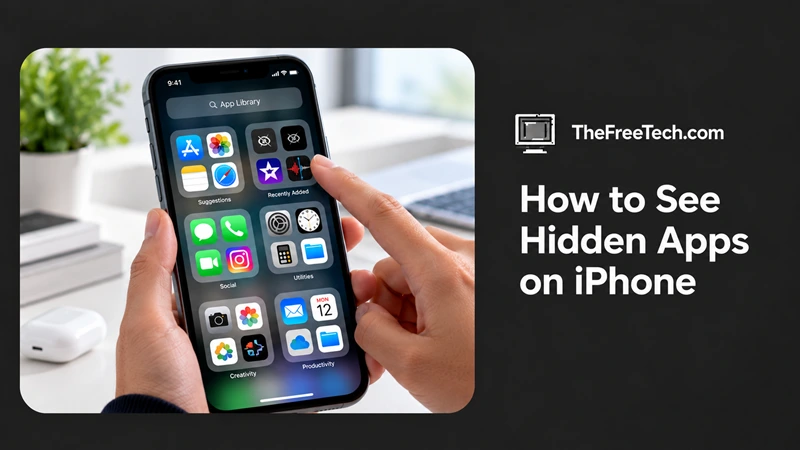
How to See Hidden Apps on iPhone

To see hidden apps on iPhone, open the App Library, scroll to the bottom, tap Hidden, and authenticate with Face ID, Touch ID, or your iPhone passcode. You can also check Settings > Apps > Hidden Apps to view a list of hidden apps.
These methods work on iPhones running iOS 18 or later. If an app is simply missing from your Home Screen, you may need to check the App Library or restore a hidden Home Screen page instead.
1. Find Hidden Apps in the App Library
The App Library contains a dedicated Hidden folder for apps concealed using Apple's built-in hiding feature.
Follow these steps:
Go to your iPhone's Home Screen.
Swipe left past all your Home Screen pages until you reach the App Library.
Scroll to the bottom of the App Library.
Tap the Hidden folder.
Use Face ID, Touch ID, or your iPhone passcode to unlock it.
Browse the apps displayed inside the folder.
You can tap an app to open it, subject to its authentication requirements.
Important: Apps hidden using this feature do not appear in normal iPhone Search results. Searching for an app's name will not reveal it while it remains hidden.
2. See Hidden Apps Through Settings
If you want to check which apps are hidden without browsing the App Library, use Settings.
Open Settings on your iPhone.
Tap Apps.
Select Hidden Apps.
Authenticate using Face ID, Touch ID, or your passcode.
Review the list of hidden apps.
This is a convenient way to check whether any apps have been hidden using Apple's built-in feature. If the list is empty, no apps are currently listed as hidden through that feature.
3. Find Apps Missing From Your Home Screen
Not every missing app is hidden. You may have removed an app icon from the Home Screen without deleting the app itself.
To find it:
Swipe left through your Home Screen pages to open the App Library.
Look through the app categories or use the Search field.
Tap the app when you find it.
If you want to put the app back on your Home Screen, touch and hold its icon in the App Library, then drag it onto a Home Screen page.
Check for hidden Home Screen pages
An entire Home Screen page may also be hidden.
Touch and hold an empty area on your Home Screen.
Tap Edit, then Edit Pages. Depending on your iOS version, you may be able to tap the page indicators near the bottom instead.
Look for unchecked circles beneath the page previews.
Select the circle for the page you want to restore.
Tap Done.
The apps on that page should become visible again.
4. How to Unhide an App on iPhone
If you find an app in the Hidden folder and want it to appear normally again, follow these steps:
Open the App Library.
Tap Hidden and authenticate.
Touch and hold the app you want to restore.
Tap Don't Require Face ID (or the corresponding Touch ID or passcode option).
Authenticate again if prompted.
The app will no longer be hidden and will appear in the App Library. You can then add it to your Home Screen if needed.
What If You Still Cannot Find an App
If the app does not appear in the Hidden folder, Settings, or App Library, try these checks.
Search the App Store: The app may have been deleted and may need to be downloaded again.
Check Screen Time: Content and privacy restrictions can affect which apps are available or visible.
Check the iOS version: The dedicated Hidden folder was introduced in iOS 18. Older versions do not have this feature.
Check built-in apps: Restrictions or configuration settings may make certain built-in apps unavailable or invisible.
Review the correct iPhone: Hidden apps are associated with the device on which they were hidden. You need the appropriate authentication to access them.
One useful distinction: removing an app from the Home Screen does not necessarily delete it, while hiding an app using Apple's dedicated feature moves it into the protected Hidden folder.
FAQ
Can I see hidden apps on iPhone without Face ID?
You may be able to authenticate using Touch ID on supported models or your iPhone passcode. You cannot use ordinary Search to reveal apps that remain hidden in the protected folder.
Can hidden apps appear in iPhone Search?
No. Apps hidden with Apple's built-in feature are excluded from normal Search results. Open the Hidden folder or visit Settings > Apps > Hidden Apps instead.
How do I know whether an app is hidden or deleted?
Check Settings > Apps > Hidden Apps and the App Library. If the app is not there, search the App Store to see whether it needs to be downloaded again.
Can I see hidden apps on an older iPhone?
The Hidden folder feature requires iOS 18 or later. On older versions, check the App Library, search for the app, and inspect any hidden Home Screen pages.
Can I see hidden apps on someone else's iPhone?
Access to the Hidden folder requires authentication on that device. You should have the device owner's permission and appropriate authorization before checking their apps.




