Free Mac Cleaner: How to Clean Up Your Mac Without Paying

Yes, you can clean up a Mac for free without buying a cleaner app. macOS already provides tools for finding storage-heavy files, removing applications and deleting data you no longer need.
A third-party free Mac cleaner can make the process easier by scanning for files in multiple locations, but “free” does not always mean that every feature is free. Some apps offer basic scanning at no cost while reserving automated cleanup or advanced features for paid versions.
If your main goal is to free storage, start with macOS itself. Then consider a third-party cleaner only if you want more automated file discovery.
Start with macOS Before Installing a Cleaner
The simplest free approach is to find out what is actually consuming your storage.
Look for categories such as:
- Large files
- Downloads
- Unused applications
- Photos and videos
- Old documents
- Files you have already backed up elsewhere
- Items sitting in the Trash
This matters because deleting random cache or system files is not necessarily the best way to recover meaningful storage.
A simple cleanup sequence
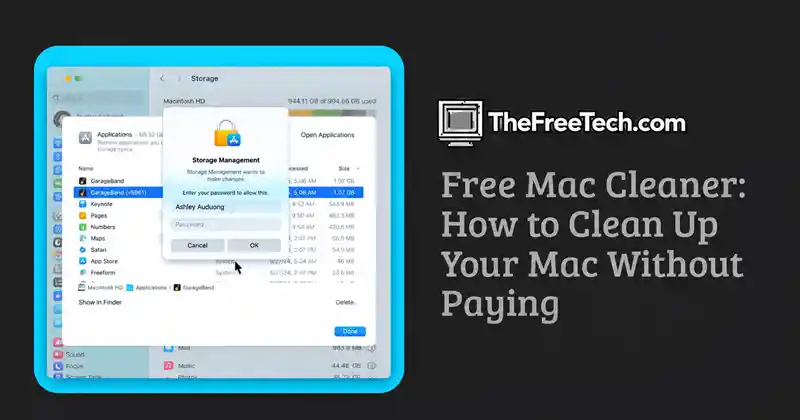
- Check your Mac's available storage.
- Identify the largest categories.
- Review large and old files.
- Remove applications you no longer use.
- Empty the Trash after confirming the files are no longer needed.
- Recheck available storage.
This gives you a measurable result without installing additional software.
What Should You Delete
A useful rule is to separate cleanup candidates into three groups.
| Category | What to do |
|---|---|
| Personal files you no longer need | Delete after reviewing |
| Old downloads and unused installers | Usually safe to remove if no longer needed |
| Applications you no longer use | Uninstall if you're certain you don't need them |
| Duplicate or unnecessary media | Review before deleting |
| Cache files | Treat cautiously |
| System files | Don't delete manually unless you know exactly what they are |
The key is identification before deletion. A cleaner that shows you what it intends to remove is more useful than one that simply promises to “clean everything.”
What Can a Free Mac Cleaner Do
A third-party cleaner may simplify tasks that would otherwise require manual searching.
Depending on the product, a free version may help you:
- Scan for unnecessary files
- Find large files
- Identify duplicate files
- Locate unused applications
- Find old downloads
- Review potentially removable data
- Group files by type or location
However, don't assume every advertised feature is included in the free version.
Before installing a cleaner, check whether its free tier actually allows deletion, rather than only scanning and reporting.
Free Mac Cleaner vs. Built-in Cleanup
You don't necessarily need third-party software.
Use macOS's built-in tools when:
- You mainly need to free storage.
- You have relatively few files to review.
- You are comfortable deleting files manually.
- You don't want to give another application access to your files.
Consider a cleaner when:
- You have accumulated a large amount of clutter.
- You want automated scanning.
- You need help identifying large or duplicate files.
- Manually checking multiple locations is taking too long.
The distinction is convenience, not necessarily necessity.
Be Careful with Cache Cleaning
Caches are temporary data created by macOS and applications. Some cleaners highlight cache files because they can occupy storage.
That does not mean every cache should be deleted.
Blindly removing files because they are labeled “cache” can create unnecessary troubleshooting problems. If a cleaner gives you the option to remove caches, review what it identifies and follow the application's or macOS's guidance rather than deleting system data indiscriminately.
For most people, large personal files and unused applications are easier cleanup targets than system data.
What “free” Really Means
When comparing free Mac cleaners, check the feature boundaries.
A product may be:
- Completely free.
- Free for basic cleanup but paid for advanced features.
- Free to scan but paid to remove certain files.
- Available as a free trial that later requires payment.
Don't judge a cleaner solely by its download price.
Look at what you can actually do without paying:
Can the free version scan? Can it identify files? Can it delete them? Are there limits on how much it can remove?
Those questions give you a much clearer picture of its usefulness.
How to Choose a Free Mac Cleaner Safely
Before granting a cleaner access to your Mac, look at four things.
1. Deletion transparency
The app should show what it wants to remove rather than hiding everything behind a single “clean” button.
2. Permissions
Pay attention to the permissions the application requests. A cleanup tool may need substantial access to inspect files, but you should understand why that access is required.
3. Privacy
Check how the application handles information about your files and device. A cleaner should not require more data access than necessary for its stated purpose.
4. Control
Prefer tools that let you review selections and decide what gets deleted.
A useful cleaner should help you make a decision, not make an irreversible decision for you.
Common Free Mac Cleaning Mistakes
Deleting system files manually
Don't remove unfamiliar files simply because they look unnecessary.
Assuming more free storage means a faster Mac
Freeing storage can solve storage-related problems, but it isn't a universal performance fix.
Trusting a large “junk” number
A scan reporting gigabytes of “junk” does not automatically mean all of those files should be deleted.
Installing several cleaners
Multiple cleaning utilities can create unnecessary complexity. Start with one approach and evaluate whether it actually solves your problem.
The Simplest Free Mac Cleanup Strategy
If you don't want to install anything, use this workflow:
Check storage → identify large files → remove unnecessary personal data → uninstall unused apps → empty Trash → check storage again.
If that solves the problem, you may not need a cleaner at all.
If you repeatedly struggle to locate unnecessary files, a reputable cleaner can provide a more convenient interface for finding them.
FAQ
Is there a completely free Mac cleaner?
Yes, some Mac cleanup tools offer free functionality, but the exact features vary. Check whether the free version supports actual cleanup or only scanning.
Can I clean my Mac without an app?
Yes. macOS provides built-in ways to review storage and remove files and applications manually.
Does a Mac cleaner make a Mac faster?
Not necessarily. Cleaning can free storage and remove unnecessary data, but it should not be treated as a guaranteed performance upgrade.
Is it safe to delete cache files?
Some caches can be removed, but not every cache or system-related file should be deleted manually. Review what a cleanup tool identifies before removing it.
What should I clean first?
Start with files you understand: old downloads, large personal files, unused applications, unnecessary media, and other data you no longer need. This is generally more straightforward than manually deleting system files.
What makes a good free Mac cleaner?
Look for transparent scan results, clear deletion controls, sensible permissions, understandable privacy practices, and a free tier that actually provides useful cleanup rather than merely advertising features behind a paywall.