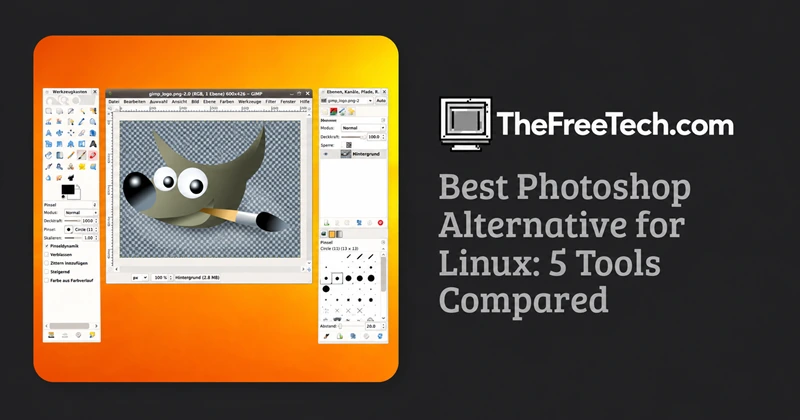
Best Photoshop Alternative for Linux: 5 Tools Compared

The best Photoshop alternative for Linux is GIMP for general image editing, Photopea for browser-based PSD editing, and Krita for digital painting. If your primary task is processing RAW photographs, darktable or RawTherapee may be a better fit.
All five options serve different purposes. The right choice depends on whether you need Photoshop-style layers and retouching, editable PSD files, illustration tools, or a dedicated photography workflow.
Best Linux Photoshop alternatives at a glance
Software | Best for | Runs on Linux | Cost |
|---|---|---|---|
GIMP | Photo editing, retouching, compositing | Yes, native app | Free |
Photopea | Quick edits and PSD files | Yes, in a browser | Free with ads; paid option |
Krita | Painting, drawing, comics | Yes, native app | Free |
Darktable | RAW development and photo workflows | Yes, native app | Free |
RawTherapee | Detailed RAW adjustments | Yes, native app | Free |
These tools are not interchangeable. GIMP and Photopea are the most relevant starting points for general Photoshop replacement, while Krita specializes in painting and the photography applications focus on RAW processing. GIMP is available for GNU/Linux, and Krita documents its support for PSD files.
1. GIMP: Best overall free Photoshop alternative

GIMP
GIMP is a strong starting point for Linux users who need photo manipulation, selections, layers, retouching, image compositing, and extensibility without paying for a subscription.
Cost: Free and open source
Official website: gimp.org
GIMP supports a broad range of image formats, including PSD, and offers scripting and plugin capabilities. It is suitable for many everyday Photoshop tasks, from removing backgrounds to combining images and creating web graphics.
Advantages
Native Linux application.
Layers, selections, brushes, and image manipulation tools.
Extensible through plugins and scripting.
No mandatory subscription.
Limitations
The interface and workflow differ from Photoshop.
Compatibility with complex Photoshop documents needs to be checked.
Some Photoshop-specific plugins and workflows may not transfer.
Choose GIMP if: You want a full-featured, free desktop image editor and are willing to learn a different workflow.
2. Photopea: Best for Photoshop-style editing in a browser

Photopea is particularly useful when someone sends you a Photoshop document and you need to make a quick edit without installing a desktop application.
Cost: Free with ads; optional paid plan
Official website: photopea.com
Because it runs in a modern browser, Photopea works on Linux distributions without requiring a native Linux installer. Its Photoshop-like interface can also make the transition easier for users accustomed to Adobe's tools.
Advantages
Opens and saves PSD files.
No conventional installation required.
Familiar layer-based editing interface.
Useful for occasional edits on different computers.
Limitations
Performance depends on browser memory and hardware.
Complex PSD files may not render perfectly.
It is not a native desktop application, and the free experience includes advertising.
Choose Photopea if: Your biggest concern is editing existing PSD files or using a familiar interface without installing software.
3. Krita: Best for digital painting and illustration

Krita is built around digital painting, illustration, concept art, and comics rather than being a direct substitute for every Photoshop photography workflow.
Cost: Free and open source
Official website: krita.org
Krita includes a customizable interface, extensive brush tools, layer management, color management, and PSD import and export. Its documentation describes support for multiple PSD layer types, although compatibility depends on the features used in a file.
Advantages
Excellent brush and illustration workflow.
Layered artwork and animation features.
Native Linux support.
PSD support for exchanging artwork.
Limitations
Not primarily designed for advanced photo retouching.
Not every Photoshop-specific feature will transfer.
Photographers may prefer a dedicated RAW editor.
Choose Krita if: You draw, paint, create comics, or produce concept art.
4. darktable: Best for RAW photography

Darktable is designed for developing RAW photographs and managing photography workflows. It is more relevant to photographers who need exposure, color, tone, and image adjustments than to designers building complex layered compositions.
Cost: Free and open source
Official website: darktable.org
Advantages
Photography-focused RAW development.
Non-destructive editing workflow.
Suitable for managing and adjusting photographic images.
Limitations
Not a general Photoshop replacement for layer-heavy graphic design.
A separate application may be needed for detailed compositing or pixel-level edits.
Choose darktable if: You shoot RAW and want a photography-centered workflow.
5. RawTherapee: Best for detailed RAW adjustments

RawTherapee
RawTherapee is another option for photographers who want extensive control over RAW image processing before exporting finished images.
Cost: Free and open source
Official website: rawtherapee.com
Advantages
Detailed photographic adjustments.
Useful for RAW conversion and image quality refinement.
Available for Linux.
Limitations
Not designed to reproduce Photoshop's complete layer-based design workflow.
Often works best alongside another application when images need compositing, text, or complex retouching.
Choose RawTherapee if: You prioritize RAW processing and want precise control over photographic adjustments.
Can Linux Photoshop alternatives open PSD files?
Yes. GIMP, Krita, and Photopea support PSD workflows, but opening a PSD is not the same as preserving every Photoshop feature.
PSD is Photoshop's internal file format, and its complex structure makes complete compatibility difficult for other applications. Krita's documentation explicitly describes this limitation and recommends other formats when possible.
Before switching, check the following:
Layers and groups: Are all layers present and correctly ordered?
Text: Can text layers remain editable?
Masks and blending: Do masks, transparency, and blend modes look correct?
Effects: Are layer styles and other Photoshop-specific effects preserved?
Fonts and color: Do the document's typography and colors match the original?
Export: Does the final PNG, JPEG, or TIFF look the same as the reference?
For professional work, test with a copy of a real project file before committing to a new application.
FAQ
Is there an official Photoshop version for Linux?
Adobe does not provide a native Linux version of Photoshop. Linux users generally choose a compatible alternative or explore unsupported workarounds. For dependable daily work, a supported Linux application is usually the simpler route.
What is the closest free alternative to Photoshop on Linux?
GIMP is the best starting point for a free, native desktop editor. Photopea is worth trying if you prioritize a Photoshop-like interface and PSD editing in a browser.
Can I use Photoshop plugins on Linux alternatives?
Not necessarily. Plugins depend on the host application and its supported interfaces. Check compatibility with your specific plugin before switching, especially if it is essential to your production workflow.
Which alternative is best for beginners?
Photopea is convenient for quick edits without installation. GIMP is a stronger starting point for someone who wants a full desktop editor and is prepared to learn its interface.
Can I replace Photoshop completely with Linux software?
You can replace many Photoshop workflows, but no single alternative guarantees identical behavior across every feature, plugin, and PSD document. Some users will get the best results by combining a general image editor with a specialist tool.




