Scan QR Codes Without Paying with Free QR Code Reader for Android

If you're looking for a free QR code reader for Android, you may not need to install anything. Many modern Android phones can scan QR codes directly through the Camera app, while Google Lens can provide another built-in scanning option.
The exact buttons vary between Samsung, Google Pixel, Xiaomi, OnePlus, Motorola, and other Android phones, but the basic process is similar:
- Open the Camera app.
- Point it at the QR code.
- Keep the entire code visible and steady.
- Wait for a notification, link, or QR icon to appear.
- Tap it if you recognize and trust the destination.
If your camera doesn't recognize QR codes automatically, try Google Lens or check your camera settings for a QR-code scanning option.
How to Scan a QR Code with Your Android Camera
This is usually the easiest option because it doesn't require another application.
Open the camera and point it toward the QR code from a short distance. Don't take a picture immediately. Hold the phone steady and allow the camera to recognize the pattern.
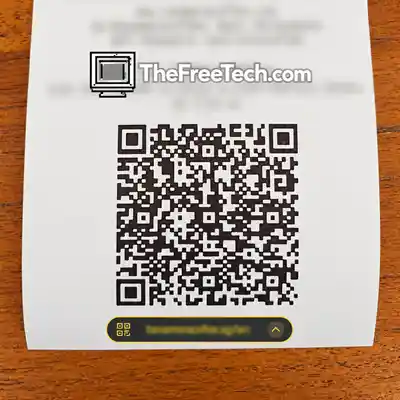
Depending on your Android device, you may see:
- A notification banner
- A link
- A QR icon
- A prompt to open Google Lens
- A button appearing near the viewfinder
Tap the notification only after checking where it leads.
If Nothing Happens
Try these adjustments:
- Move the phone slightly farther away.
- Make sure the entire QR code is visible.
- Clean the camera lens.
- Improve the lighting.
- Avoid glare on the QR code.
- Increase the screen brightness if you're scanning a code displayed on another phone.
- Try Google Lens.
Your phone's camera interface may also have a setting that enables or disables QR-code recognition.
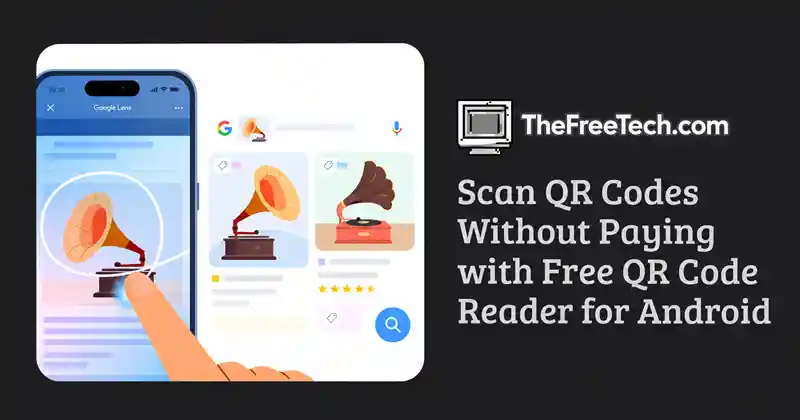
Use Google Lens as a Free QR Reader
Google Lens can recognize QR codes as well as other objects and text.
On supported Android phones, you may be able to access Lens through:
- The Camera app
- The Google app
- Google Photos
- A Lens button in the camera interface
Point Lens at the QR code and wait for it to identify the content.
This is particularly useful when the normal camera view doesn't automatically detect the code.
Do You Actually Need a QR Scanner App
For ordinary QR codes, usually not.
A dedicated scanner can make sense if you need additional functionality, such as:
- Keeping a scan history
- Batch scanning
- More specialized barcode formats
- Exporting scan results
- Working with older hardware or software
But installing an app solely because you need to scan an ordinary QR code may add unnecessary software and permissions to your phone.
Before installing one, check whether your existing camera already provides the functionality.
What if Your Android Phone Won't Scan QR Codes
Try this troubleshooting sequence.
1. Check the distance
If you're too close, the camera may not be able to focus properly. Move the phone back slightly.
2. Improve lighting
QR codes need sufficient contrast. Avoid shadows and strong reflections.
3. Keep the code flat
If you're scanning a code on paper or a screen, straighten it as much as possible.
4. Try Google Lens
If your standard camera doesn't recognize the code, Lens may still be able to identify it.
5. Check camera settings
Some manufacturers include a QR-scanning toggle in the camera settings.
6. Try another QR code
If only one particular code fails, the problem may be with the QR code itself rather than your phone.
Be Careful Before Opening a QR-code Link
Scanning a QR code is not the same as verifying that its destination is safe.
A QR code can contain a URL that takes you to a website you didn't expect.
Before opening a link:
- Check the domain name.
- Be cautious of misspelled brand names.
- Don't enter passwords after following an unexpected QR code.
- Don't provide payment information unless you independently verify the destination.
- Be especially careful with QR codes placed over legitimate-looking signs or stickers.
For example, a QR code claiming to be from a bank should not automatically be trusted just because the surrounding sign looks official.
The same principle applies to QR codes received by email, text message, social media, or printed materials.
Free QR Reader Apps: What to Check
If your Android phone genuinely needs a dedicated scanner, don't choose an app based solely on its name.
Check:
Developer: Is the publisher identifiable and reputable?
Permissions: Does a simple scanner request access that seems unrelated to scanning?
Reviews: Look for recent reviews rather than relying only on the overall rating.
Ads: Some free scanners are heavily ad-supported.
Privacy: Check what scan data and device information the application says it collects.
Update history: An actively maintained application is preferable to an abandoned one.
You can also search Google Play for QR scanner applications and compare their current privacy disclosures and permissions before installing anything.
Camera vs. QR Scanner App
| Feature | Built-in camera/Lens | Dedicated QR app |
|---|---|---|
| QR scanning | Usually | Yes |
| Extra installation | No | Yes |
| Cost | Usually $0 | Often free, sometimes paid |
| Scan history | Device-dependent | Often available |
| Extra barcode features | Device-dependent | Often available |
| Additional permissions | Minimal compared with installing another app | Depends on app |
| Best for ordinary QR codes | Yes | Usually unnecessary |
The built-in option is generally the simplest starting point.
FAQ
Is there a completely free QR code reader for Android?
Yes. Many Android phones can scan QR codes through their built-in camera, meaning you may not need a separate QR reader at all.
How do I scan a QR code without an app?
Open your Android phone's camera and point it at the QR code. On supported devices, the camera will recognize it and display an action or link. If that doesn't work, try Google Lens.
Why won't my Android camera scan a QR code?
Possible causes include poor lighting, camera focus, glare, an overly close viewing distance, disabled QR recognition, or a damaged/invalid QR code.
Is Google Lens free?
Google Lens is available as a free Google feature on supported devices and can recognize QR codes in addition to text, objects, and other visual information.
Are QR scanner apps safe?
A QR scanner application can be legitimate, but installing an app doesn't make the QR codes it scans safe. Evaluate the app's developer, permissions, privacy practices, and reviews. Inspect the destination URL before opening it.
Do I need a QR code reader on every Android phone?
No. Many current Android phones already provide QR scanning through the camera or Google Lens. The exact availability depends on the device and software version.