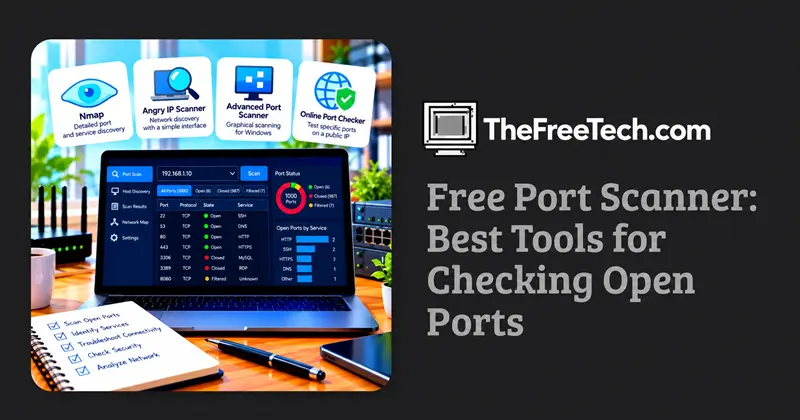
Free Port Scanner: Best Tools for Checking Open Ports

A free port scanner helps you identify open network ports, check which services are reachable, and troubleshoot connectivity or security issues. For most users, Nmap is a strong starting point because it is free, open source, and supports detailed scans of individual computers and entire networks.
The right tool depends on what you need to scan. Use a command-line scanner for flexibility, a graphical application for easier network discovery, or an online port checker when you only need to test selected ports on a publicly reachable server.
Best Free Port Scanners
| Tool | Best for | Main advantage |
|---|---|---|
| Nmap | Servers, individual computers, and networks | Detailed port and service discovery |
| Angry IP Scanner | Discovering devices on a local network | Lightweight graphical interface |
| Advanced Port Scanner | Windows network administration | Graphical scanning and network discovery |
| Online port checker | Testing selected ports on a public IP address | No local scanner installation required |
Check each project's official website for current operating-system support, licensing, and download options. The table describes intended use cases, not the results of comparative performance testing.
Which Free Port Scanner Should You Choose
Choose Nmap for detailed scans. It supports different scanning techniques, service detection, and network discovery. It is a good choice for administrators, developers, and security professionals who need control over their scans.
Choose Angry IP Scanner for quick network discovery. Its graphical interface is useful when you want to identify devices on a local network without learning a large number of command-line options.
Choose Advanced Port Scanner for a graphical Windows workflow. It is worth considering when you want to discover devices and inspect accessible ports from a Windows computer.
Choose an online port checker for a quick external test. These tools are convenient for checking whether a particular port on your public IP address is reachable from the internet. They generally cannot replace a full network scanner.
For a free, flexible starting point, Nmap is the most broadly applicable recommendation.
How to Use a Free Port Scanner
The following example uses Nmap to scan a computer or server you own or are authorized to assess.
Step 1: Install the scanner
Download Nmap from its official download page. Follow the installation instructions for your operating system.
Avoid unofficial installers that bundle unknown software.
Step 2: Choose the target
Identify the IP address or hostname of the system you want to check.
For example, 192.168.1.10 is a private IPv4 address commonly used in local networks. Replace it with the actual address of your authorized target.
Step 3: Run a basic port scan
Open a terminal or command prompt and run:
nmap 192.168.1.10This requests a default TCP port scan of the specified target. The command does not scan every possible TCP and UDP port.
To check a few specific TCP ports, use:
nmap -p 22,80,443 192.168.1.10This checks ports 22, 80, and 443, commonly associated with SSH, HTTP, and HTTPS, respectively.
For the meaning of additional options and scan types, consult the official Nmap reference guide.
Step 4: Read the results
A typical result includes a port number, protocol, state, and sometimes the detected service.
| Result | Meaning |
|---|---|
| Open | A service is accepting connections on the scanned port. |
| Closed | The target is reachable, but no service is accepting connections on that port. |
| Filtered | Filtering or a lack of a conclusive response prevents the scanner from determining whether the port is open. |
These states describe what the scan can observe. They do not independently prove that a system is secure or vulnerable.
Step 5: Verify unexpected findings
If a port appears open unexpectedly, check which service is listening, whether it needs to be exposed, and whether access is appropriately restricted.
If a port appears closed or filtered when you expect it to be accessible, investigate the firewall, routing, service configuration, and the location from which you ran the scan.
Can You Scan Ports Without Installing Software
Yes, if you only need to check selected ports on a public server.
An online port checker can test whether a particular service is reachable from its own internet connection. This can be useful when troubleshooting a website, remote-access service, or other internet-facing application.
However, an online checker has important limitations:
It may only test selected ports rather than perform a comprehensive scan.
It observes the target from the checker's network, not from your computer or internal network.
It cannot necessarily discover devices behind your router.
A successful connection does not prove that the service is free from vulnerabilities.
For local-network discovery, detailed service identification, or repeatable security assessments, an installed scanner such as Nmap is generally more suitable.
Why Does a Port Scanner Report Unexpected Results
A port is open, but the service is inaccessible. The application may be listening on a different network interface, or a firewall, routing rule, or access-control policy may be blocking your connection.
A port is filtered. A firewall or other network device may be dropping scan traffic. Repeat the test from an authorized location and review the relevant filtering rules.
A port is closed. Check whether the expected application is running and listening on the correct port.
A local scan works, but an external scan fails. The router may not forward the port, the host firewall may block external traffic, or the service may be intentionally restricted to the internal network.
A scan finds no open ports. This does not necessarily mean that the target is offline or secure. The scanner may be using a limited port range, or the target may not respond to the probes being used.
Nmap's official documentation explains host discovery, port states, scan methods, and the effects of filtering in greater detail.
Is a Free Port Scanner Enough for Security Testing
A free port scanner is a useful first step in understanding network exposure, but port scanning is not a complete security assessment.
For an initial review:
Identify the services that should be reachable.
Scan the authorized system from the relevant network location.
Investigate unexpected open ports.
Restrict unnecessary services using host firewalls, network firewalls, or access controls.
Repeat the scan to verify the changes.
An open port is not automatically dangerous. A properly configured public web server, for example, normally needs to accept connections on its web-service ports. The important questions are whether the service is necessary, appropriately configured, and accessible only to the intended users.
Only scan systems and networks you own or have explicit permission to assess. Even routine scans can trigger monitoring alerts or violate an organization's acceptable-use rules.
FAQ
What is the best free port scanner?
Nmap is a strong general-purpose choice for detailed port scanning and network discovery. Users who prefer a graphical interface can consider Angry IP Scanner or Advanced Port Scanner.
Is there a free online port scanner?
Yes. Online port checkers can test selected ports on publicly reachable IP addresses. They are useful for quick connectivity checks but are not equivalent to a full network scanner.
Can a free port scanner find every open port?
Not necessarily. Results depend on the ports scanned, TCP or UDP coverage, permissions, network reachability, and filtering. A default scan typically checks a subset of ports.
Can I scan my own router?
Yes, if you administer the router and its network. A scan of the router's private address checks its accessibility from the local network, while an external test checks what is reachable from outside. These tests can produce different results.
Does an open port mean my computer has been hacked?
No. Open ports are often necessary for normal services. Investigate whether the service is expected, correctly configured, and appropriately protected before drawing conclusions.