Best Free Microsoft Word Alternatives in 2026

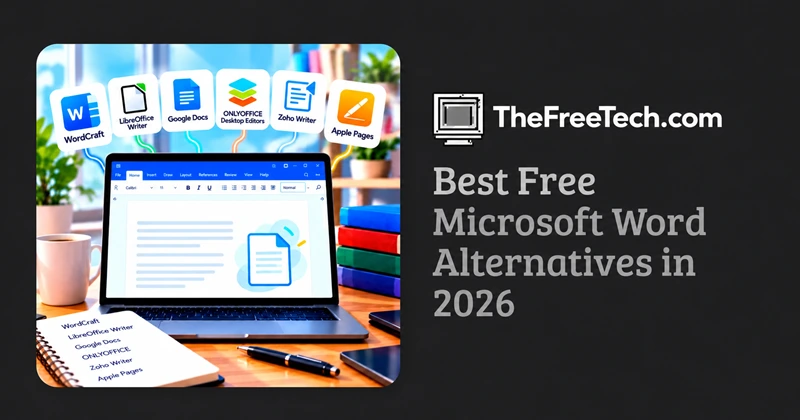
The best free Microsoft Word alternatives in 2026 include WordCraft, LibreOffice Writer, Google Docs, and ONLYOFFICE Desktop Editors. Each offers a different way to create and edit documents without paying for a Microsoft 365 subscription.
WordCraft is a particularly interesting option for people who want a free, open-source word processor with a familiar Microsoft Word-style interface. It supports DOCX files, offers desktop versions for Windows, macOS, and Linux, and includes features such as text formatting, document styles, track changes, and references. However, WordCraft is still in early development, so users should test it with important documents before relying on it for everyday work.
For most people, the choice comes down to three priorities: use WordCraft or LibreOffice Writer for desktop editing, Google Docs for online collaboration, or ONLYOFFICE Desktop Editors for workflows centered on Microsoft Office files.
Best Free Microsoft Word Alternatives at a Glance
| Alternative | Best for | Offline editing | Pricing |
|---|---|---|---|
| WordCraft | Word-style editing with open-source software | Yes, in desktop versions | Free and open source |
| LibreOffice Writer | Full-featured desktop word processing | Yes | Free and open source |
| Google Docs | Real-time collaboration | Yes, with setup | Free personal version |
| ONLYOFFICE Desktop Editors | Microsoft Office document workflows | Yes | Free desktop suite |
| Zoho Writer | Online business documents | Primarily online | Free and paid plans |
| Apple Pages | Mac, iPhone, and iPad users | Yes, in supported apps | Free Apple software |
The most important distinction is that these tools are not interchangeable in every situation. Some prioritize desktop functionality, others focus on collaboration, and newer applications such as WordCraft are still developing their feature sets and compatibility.
1. WordCraft: Best New Open-Source Microsoft Word Alternative
WordCraft is a free, open-source word processor built in Rust, designed to provide a familiar document-editing experience without requiring a Microsoft Word subscription.
Developed by the ArtCraft team, WordCraft aims to reproduce the traditional desktop word-processing workflow with a ribbon interface, formatting controls, document navigation, and support for common document formats.
Official website: https://getartcraft.com/apps/wordcraft
Key features
DOCX support: Opens and saves Microsoft Word DOCX documents.
Familiar interface: Includes ribbon tabs, keyboard shortcuts, formatting controls, and a live Styles gallery.
Document review: Supports comments, tracked changes, accepting and rejecting revisions, and document comparison.
Academic writing: Provides tools for tables of contents, footnotes, citations, bibliographies, indexes, and captions.
Multiple formats: Imports and exports formats including ODT, RTF, HTML, Markdown, and plain text.
PDF export: Exports PDF documents with selectable text.
Offline desktop editing: Desktop versions are available for Windows, macOS, and Linux.
Open-source licensing: The project is distributed under the MIT or Apache-2.0 license, with separate licenses for bundled assets.
These capabilities make WordCraft worth considering for people who want a desktop word processor with familiar controls, particularly those who work with structured documents or frequently exchange DOCX files.
What makes WordCraft different?
Unlike browser-first tools such as Google Docs, WordCraft is designed around a traditional word-processing workspace. Its ribbon, styles, navigation, and review tools will be familiar to users accustomed to desktop office software.
It is also being developed as an open-source project rather than a subscription-based Microsoft 365 product. Users can access its source code and follow development through its official project resources.
Limitations to consider
WordCraft is currently at version 0.5.0 and remains an early-stage project. Although it supports DOCX, compatibility with complex documents may still be evolving. Users should verify that layouts, fonts, tables, comments, and tracked changes survive the process of opening, editing, and saving their own files.
The project also provides a browser build, but its availability and capabilities may differ from the desktop versions.
Verdict: WordCraft is worth trying if you want a free, open-source, Word-style desktop editor. Because development is ongoing, treat it as a promising alternative to evaluate rather than assuming it already replaces every Microsoft Word workflow.
2. LibreOffice Writer: Best Established Free Desktop Alternative
LibreOffice Writer is a strong choice for users who need a full-featured word processor without a subscription. It is part of the LibreOffice office suite, which also includes spreadsheet and presentation applications.
Key features
Create essays, reports, letters, and long documents.
Work with DOCX, ODT, and other document formats.
Use styles, tables, page layouts, and advanced formatting tools.
Store documents locally and work offline.
Use the application on Windows, macOS, and Linux.
Limitations
Its interface differs from Microsoft Word, and complex DOCX documents may not preserve every formatting detail. Its desktop-first workflow also lacks the same built-in real-time collaboration experience as Google Docs.
Verdict: Choose LibreOffice Writer if you want a mature, free desktop office suite with extensive document-editing features.
Official website: https://www.libreoffice.org/
3. Google Docs: Best for Online Collaboration
Google Docs is a browser-based word processor that makes it easy to create, edit, share, and collaborate on documents.
Key features
Edit documents with multiple collaborators in real time.
Share files with adjustable permissions.
Add comments and suggestions.
Access documents across supported devices.
Import and export Microsoft Word files.
Save work automatically to Google Drive.
Google Docs is especially useful for students, remote workers, and teams that need to edit the same document without emailing different versions back and forth.
Limitations
Offline editing requires prior setup and a supported configuration. Users working with complicated Word documents should also review formatting after importing or exporting files.
Verdict: Choose Google Docs if sharing and collaboration are more important than having a traditional desktop application.
Official website: https://docs.google.com/
4. ONLYOFFICE Desktop Editors: Best for Microsoft Office File Workflows
ONLYOFFICE Desktop Editors is a free desktop office suite designed to work with common Microsoft Office formats, including DOCX.
Key features
Create and edit Word documents.
Work with spreadsheets and presentations.
Open and edit locally stored files offline.
Use desktop applications on Windows, macOS, and Linux.
Access additional collaboration features through compatible online services.
Limitations
Although ONLYOFFICE emphasizes Microsoft Office compatibility, some advanced formatting or Word-specific features may behave differently. Real-time collaboration also depends on the connected service or platform.
Verdict: Choose ONLYOFFICE Desktop Editors if you frequently exchange DOCX files with colleagues, clients, or customers.
Official website: https://www.onlyoffice.com/desktop
5. Zoho Writer: Best for Online Business Documents
Zoho Writer is an online word processor designed for document creation, collaboration, review, and business workflows.
Key features
Create and format documents in a browser.
Collaborate with other users.
Review and comment on documents.
Work with Microsoft Word formats.
Connect document editing with other Zoho services.
Limitations
Zoho Writer is primarily an online service, and some advanced business features depend on the available plan or connected products.
Verdict: Choose Zoho Writer if you regularly prepare business documents, review shared files, or use other Zoho applications.
Official website: https://www.zoho.com/writer/
6. Apple Pages: Best for Apple Users
Apple Pages is a free word processor for the Apple ecosystem. It is suitable for everyday writing as well as documents that require polished layouts and templates.
Key features
Create letters, reports, essays, and other documents.
Use templates and visual formatting tools.
Work across supported Apple devices.
Export documents in Microsoft Word format.
Edit documents offline in supported apps.
Limitations
Pages is less convenient for people who regularly switch between Windows, Linux, and Apple devices. Converting documents to DOCX can also change formatting.
Verdict: Choose Apple Pages if you primarily use a Mac, iPhone, or iPad and want a straightforward document editor.
Official website: https://www.apple.com/pages/
Which Free Microsoft Word Alternative Should You Choose
The best option depends on what you need to accomplish.
| Your main requirement | Recommended tool |
|---|---|
| A new open-source Word-style editor | WordCraft |
| Extensive desktop word-processing features | LibreOffice Writer |
| Real-time collaboration | Google Docs |
| Regular DOCX document exchange | ONLYOFFICE Desktop Editors |
| Online business document workflows | Zoho Writer |
| Writing on Apple devices | Apple Pages |
WordCraft vs. LibreOffice Writer
Both are free, open-source desktop alternatives, but they offer different trade-offs.
WordCraft is worth exploring if you prefer a familiar ribbon interface and want to follow the development of a newer word processor. LibreOffice Writer is the more established option for users who need a broad set of document-editing capabilities today.
If you're considering WordCraft for professional use, test your actual documents before moving your entire workflow. If reliability across existing document types is your primary concern, LibreOffice Writer is a sensible starting point.
WordCraft vs. Google Docs
WordCraft and Google Docs are suited to different working styles.
WordCraft emphasizes a desktop word-processing experience and supports offline editing in its desktop versions. Google Docs is built around online access, easy sharing, and real-time collaboration.
Choose WordCraft if you want a local desktop editor. Choose Google Docs if multiple people need to work on the same document.
WordCraft vs. ONLYOFFICE
Both support DOCX files and offer desktop editing options. WordCraft stands out for its open-source development and familiar ribbon interface, while ONLYOFFICE is an established alternative for people who regularly exchange Microsoft Office documents.
Neither guarantees perfect formatting in every DOCX file. Test documents containing complex tables, embedded images, tracked changes, or specialized layouts before committing to either application.
How to Switch From Microsoft Word Without Losing Formatting
Regardless of which alternative you choose, test it before migrating important documents.
Back up your original files. Keep an untouched copy of each important Word document.
Open a representative DOCX file. Select one containing headings, tables, images, page numbers, and other formatting you use regularly.
Check the layout. Look for missing fonts, changed page breaks, shifted images, and altered tables.
Make a small edit. Save the document and reopen it to see whether the formatting remains intact.
Export or save as DOCX. Check the resulting file in Microsoft Word if possible.
Test advanced workflows. Verify tracked changes, comments, references, mail merge, or macros if your work depends on them.
For WordCraft in particular, remember that the project is still evolving. Save or export your work before closing the editor, and keep backups while evaluating it.
FAQ
What is the best free Microsoft Word alternative in 2026?
There is no single winner for every use case. LibreOffice Writer is a strong established desktop option, Google Docs is excellent for collaboration, and WordCraft is a promising open-source alternative for users who prefer a familiar Word-style interface.
Is WordCraft completely free?
WordCraft is presented by its developers as free and open source. Its official project page lists desktop versions for Windows, macOS, and Linux. Its current release is version 0.5.0.
Can WordCraft open Microsoft Word documents?
Yes. WordCraft supports opening and saving DOCX files, as well as importing and exporting several other document formats. However, compatibility with complex documents is still evolving, so review important files after editing them.
Does WordCraft work offline?
Yes. The desktop versions support offline document editing. WordCraft also has a browser build, but browser functionality and availability can differ from the desktop application.
Is WordCraft better than LibreOffice Writer?
Not for every user. WordCraft may appeal to people who prefer its familiar ribbon interface and want to try a newer open-source editor. LibreOffice Writer is a more established choice for users who need a comprehensive desktop word processor today.
Which free alternative is best for students?
Google Docs is useful for group projects and shared assignments. LibreOffice Writer is a strong choice for offline writing, while WordCraft may be worth exploring for students who want a Word-style desktop editor. Students should verify any institution-specific formatting requirements before submitting documents.
Can I use a free alternative for professional documents?
Yes. These applications can create resumes, reports, proposals, and other professional documents. If you exchange files with people using Microsoft Word, check the final DOCX formatting or export a PDF when appropriate.