Stress Test Freeware: Best Free Tools for PC Stability

The best stress test freeware depends on which component you want to test. OCCT is a versatile option for CPU, GPU and power-related stability testing; Prime95 is a popular choice for CPU stress testing; MemTest86 is designed for memory diagnostics; and FurMark focuses on GPU stress testing.
Before downloading anything, identify the component you want to test. A CPU stress test cannot reliably rule out defective RAM, and a GPU benchmark alone does not establish overall system stability.
Best Free Stress Testing Software
| Software | Primary purpose | Best use |
|---|---|---|
| OCCT | CPU, GPU, memory and combined-system testing | Broad stability diagnostics |
| Prime95 | CPU and memory-subsystem load | CPU stability and calculation errors |
| MemTest86 | RAM testing | Detecting memory errors |
| FurMark | GPU stress testing | Checking graphics-card stability and thermals |
| HWiNFO | Hardware monitoring | Tracking temperatures, clocks and power readings |
These tools serve different purposes. HWiNFO, for example, is primarily a monitoring utility rather than a stress-test generator. Availability, free-use conditions and platform support can vary by edition, so check each developer's official website before installing.
1. OCCT: A Versatile Option for System Testing
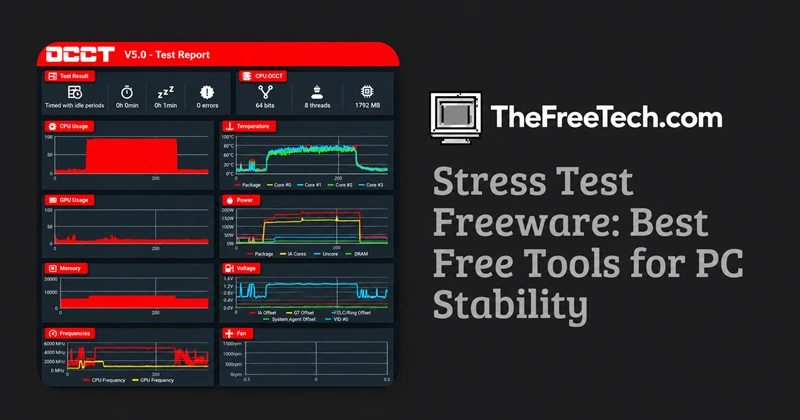
OCCT is worth considering when you want multiple diagnostic tests within one application.
Depending on the version and available features, it can help evaluate CPU stability, graphics-card behavior, memory and combined system loads.
Best for: Users who want a single starting point for investigating system instability.
Use it when:
Your PC crashes during demanding workloads.
You suspect instability after changing hardware settings.
You want to observe temperatures and system behavior under load.
A failed test does not automatically identify the defective component. Overheating, unstable settings, driver problems and power delivery issues can produce similar symptoms.
Official website: https://www.ocbase.com/download-personal
2. Prime95: CPU Stress Testing
Prime95 is widely used to load processors heavily and detect calculation errors under demanding conditions.
It is particularly useful for investigating CPU stability after overclocking or undervolting, although a successful test cannot guarantee stability in every application.
Best for: CPU-focused stability testing.
Start with a short test while monitoring CPU temperature and system behavior. Increase the duration only if temperatures remain within the processor's specified operating limits and the system behaves normally.
Official website: https://www.mersenne.org/
3. MemTest86: RAM Diagnostics
MemTest86 tests system memory using bootable diagnostic software, allowing memory checks outside the normal Windows environment.
It is useful when investigating:
Random application crashes.
Unexpected restarts or blue screens.
Suspected faulty RAM.
Instability after changing memory timings or enabling memory profiles.
Best for: Detecting memory errors that ordinary CPU or GPU stress tests may miss.
A memory error is a reason to investigate the RAM modules, memory settings, motherboard and CPU memory controller. It does not prove that a particular RAM stick is defective.
Official website: https://www.memtest86.com/
4. FurMark: GPU Stress Testing
FurMark places a heavy graphics workload on a GPU and is commonly used to observe graphics-card temperatures and behavior under sustained load.
Best for: Investigating graphics-card stability and cooling performance.
GPU stress testing can generate substantial heat and power consumption. Check your manufacturer's specifications, monitor temperatures, and avoid prolonged testing if the card overheats or shows abnormal behavior.
A GPU passing FurMark does not guarantee that every game or graphics application will run without errors.
Official website: https://geeks3d.com/furmark/
5. HWiNFO: Monitor Temperatures and Hardware Behavior
A stress test is much more useful when you can observe what the hardware is doing.
HWiNFO provides detailed hardware information and sensor readings on supported systems. Use it alongside a stress-testing utility to monitor:
CPU and GPU temperatures.
Clock speeds and possible throttling.
Power readings, where supported.
Fan speeds and other available sensor data.
Best for: Understanding how the system behaves during a test.
HWiNFO monitors hardware; it does not replace a dedicated CPU, GPU or RAM stress test.
Official website: https://www.hwinfo.com/
How to Choose the Right Stress Test
Start with the symptom rather than running every available test.
| Problem or objective | Recommended starting point |
|---|---|
| CPU errors or crashes under processor-heavy workloads | Prime95 or OCCT |
| Suspected RAM errors or memory-related crashes | MemTest86 |
| GPU instability or graphics-related crashes | FurMark or an appropriate OCCT GPU test |
| Instability involving multiple components | OCCT, followed by targeted tests |
| High temperatures or unexplained performance drops | HWiNFO alongside a suitable stress test |
These are starting points, not definitive diagnoses. Different tests can expose different faults, and the cause may lie outside the component being stressed.
How to Stress-Test a PC Safely
Follow a controlled procedure rather than immediately running the most demanding test for hours.
Record the baseline. Note idle temperatures, fan behavior and any existing errors.
Return to stable settings. If possible, disable experimental overclocking or undervolting before diagnosing hardware.
Monitor temperatures. Use a hardware-monitoring utility and check the limits specified for your CPU and GPU.
Run one targeted test. Begin with a short session and observe temperatures, errors and system behavior.
Stop if something looks wrong. Shut down the test if temperatures exceed supported limits, the system becomes unstable, or you notice unusual electrical smells or noises.
Review the results. Record the test, duration, hardware settings and any errors before trying another component.
Do not assume that every computer should remain stable under every synthetic workload indefinitely. The appropriate test and duration depend on the hardware, cooling system and diagnostic objective.
Stress Testing vs. Benchmarking
These terms describe different goals.
Stress testing applies demanding workloads to investigate stability, errors and thermal behavior.
Benchmarking measures performance, such as rendering speed or frame rates.
Hardware monitoring records sensor readings and system behavior.
Some applications perform more than one of these functions. However, a high benchmark score does not establish hardware stability, and a stress test is not necessarily a reliable way to compare performance between computers.
FAQ
Is there completely free stress test software?
Yes. Several established tools offer free versions or free-use options, including Prime95 and MemTest86. OCCT and FurMark are also common choices, but verify the current edition's licensing and feature restrictions before downloading.
What is the best free PC stress test?
There is no single best option for every purpose. OCCT is a practical starting point for broad system diagnostics, Prime95 is suited to CPU testing, MemTest86 focuses on memory, and FurMark targets GPU stress testing.
How long should I run a stress test?
Start with a short, monitored session. Longer testing may help investigate intermittent failures, but there is no universal duration that proves a system is stable. Use the test's documentation and the hardware manufacturer's guidance to determine an appropriate procedure.
Can stress testing damage a computer?
A properly configured system should generally tolerate workloads within its operating limits, but stress tests can generate substantial heat and power consumption. Poor cooling, excessive voltage, unstable overclocking or defective hardware can increase risk. Monitor the system and stop if temperatures or behavior become abnormal.
Does passing a stress test mean my PC is stable?
Not necessarily. Passing one test only shows that the system completed that workload under the tested conditions. Different workloads, longer sessions or different memory patterns may expose problems that the original test did not detect.