How to Alphabetize Apps on iPhone (3 Easy Methods)

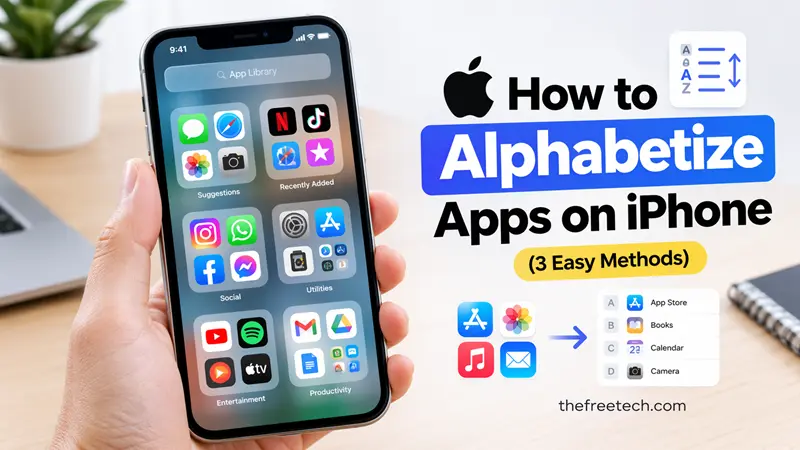
You have the option of arranging the apps on your iPhone by resetting the Home Screen layout, by browsing the alphabetical list of apps in the App Library, or by manually repositioning the app icons. The most suitable method will depend on whether your aim is to reorganize the Home Screen or just to find apps more quickly.
The fastest way to do it is to swipe left across the pages of your Home Screen to access the App Library, tap the search box within it, and then look through your installed apps in alphabetical order. However, this action does not alter your current Home Screen layout.
If you want the icons on your actual Home Screen to be arranged in alphabetical order, you'll have to reset the layout or move the apps yourself.
Method 1: View Your iPhone Apps in Alphabetical Order Using App Library
The App Library is the easiest way to find apps alphabetically without changing your existing Home Screen arrangement.
Follow these steps:
Go to your iPhone Home Screen.
Swipe left past all your Home Screen pages until you reach the App Library.
Tap the search field at the top.
Your installed apps will appear in an alphabetical list.
Scroll through the list or type an app's name to find it.
Tap an app to open it.
Why use this method?
Your existing Home Screen arrangement stays intact.
You don't lose folders you've created.
You can find apps without scrolling through multiple Home Screen pages.
You don't need to reset any iPhone settings.
This is the recommended method if your main goal is to locate apps quickly rather than change their positions.
Method 2: Alphabetize Apps by Resetting Your iPhone Home Screen
If you want your downloaded apps arranged alphabetically on your actual Home Screen, you can use Apple's built-in Reset Home Screen Layout option.
Here's how:
Open the Settings app.
Tap General.
Scroll down and select Transfer or Reset iPhone.
Tap Reset.
Select Reset Home Screen Layout.
Confirm by tapping Reset Home Screen.
Your Home Screen will return to its default arrangement. Apps you've downloaded will be organized alphabetically after the apps that came with your iPhone.
What Happens When You Reset Your Home Screen?
Before using this option, understand what the reset changes.
| Item | What happens |
|---|---|
| Downloaded apps | Arranged alphabetically |
| Built-in Apple apps | Returned to their original arrangement |
| Custom app folders | Removed |
| Apps and app data | Not deleted |
| Home Screen layout | Returned to its default arrangement |
Important: Reset Home Screen Layout is not the same as factory resetting your iPhone. It changes your Home Screen organization rather than erasing your apps, photos, messages, or personal data.
However, you'll need to recreate any custom folders you previously made.
Method 3: Arrange iPhone Apps Alphabetically Without Resetting
Don't want to lose your existing folders or Home Screen organization?
You can manually move your apps into alphabetical order instead.
Here's what to do:
Go to your Home Screen.
Touch and hold an empty area until the app icons start shaking.
Find the app you want to move.
Drag it to your preferred alphabetical position.
Continue moving the other apps until they're organized from A to Z.
Tap the Home Screen background when you're finished.
You can also drag apps between different Home Screen pages.
Keep in mind: This method gives you more control over your layout, but arranging dozens of apps manually can take time.
How to Keep New iPhone Apps Organized Alphabetically
After alphabetizing your apps, you might notice that newly downloaded apps don't automatically appear in alphabetical order on your Home Screen.
You can avoid adding new clutter by changing where newly downloaded apps appear.
Open Settings.
Tap Home Screen & App Library.
Under Newly Downloaded Apps, select App Library Only.
New apps will then appear in the App Library instead of automatically being added to your Home Screen.
You can still access them through the alphabetical app list or add selected apps to your Home Screen whenever you want.
Which Method Should You Choose
Here's a quick comparison to help you decide:
| Your goal | Recommended method |
|---|---|
| Find apps alphabetically | App Library |
| Alphabetize downloaded Home Screen apps | Reset Home Screen Layout |
| Keep existing folders and organize manually | Manual rearrangement |
| Prevent new apps from cluttering your Home Screen | App Library Only |
For most iPhone users, the App Library is the simplest solution because it provides alphabetical access without disrupting an existing layout.
FAQ
Can I automatically sort all iPhone apps alphabetically?
Yes, you can use Settings > General > Transfer or Reset iPhone > Reset > Reset Home Screen Layout. This arranges downloaded apps alphabetically after Apple's built-in apps. However, it also removes folders you've created.
Does alphabetizing iPhone apps delete them?
No. Resetting the Home Screen layout does not delete your installed apps or their data. It only changes how apps are arranged on your Home Screen.
Can I alphabetize apps without resetting my iPhone?
Yes. Open the App Library, tap its search field, and browse your apps alphabetically. You can also manually drag app icons into alphabetical order without resetting your layout.
How do I find a specific app quickly on my iPhone?
Swipe down from the middle of your Home Screen to open Search. Type the app's name and tap the result to launch it.
Can I alphabetize apps inside an iPhone folder?
Yes. Touch and hold an app, enter Home Screen editing mode, and manually rearrange the icons inside the folder. iPhone does not provide an automatic alphabetical sorting option for individual folders.